Insights and reports
Insights
Insights reads finished chats with AI and sorts them into topics, so you see what customers ask about week on week and how well the AI answers each.
Who can use it: Owner, Admin, Agent and Viewer, or a custom role with "See analytics and reports". Renaming, merging and hiding topics and the Settings tab need "Change workspace settings and connections" (Owner and Admin). Opening a chat from Insights needs "See the shared inbox and conversations".
Step 1: Turn on Insights in Apps
Insights is off until an Owner or Admin turns it on. Then, every hour, each finished chat (closed, or quiet for 30 minutes) is read once by a small AI model and put in one topic from a short list per chatbot, the last 30 days first.
Step 2: Open Insights from Apps
The Topics tab lists each topic with its chats, the change on the period before, the last 8 weeks and the shares "AI answered", "Handed over" and "Did not know", with ratings. Pick the period at the top, and the chatbot when you have more than one. Topics that jumped this week show in a box above the list.
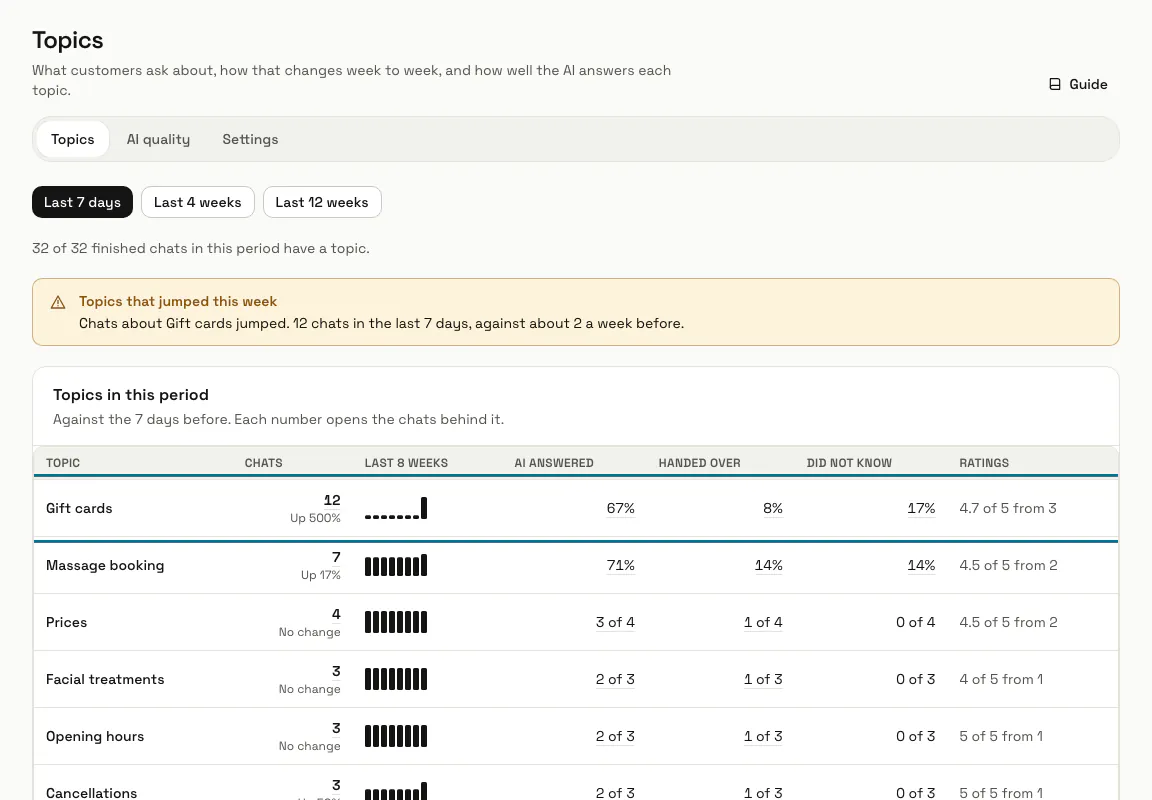
Step 3: Open a topic
Press a topic to see its numbers, its last weeks by whether the AI answered, and its latest chats. Buttons narrow the chats to the ones the AI did not know, the ones handed to a person, the ones the visitor left, or unhappy visitors.
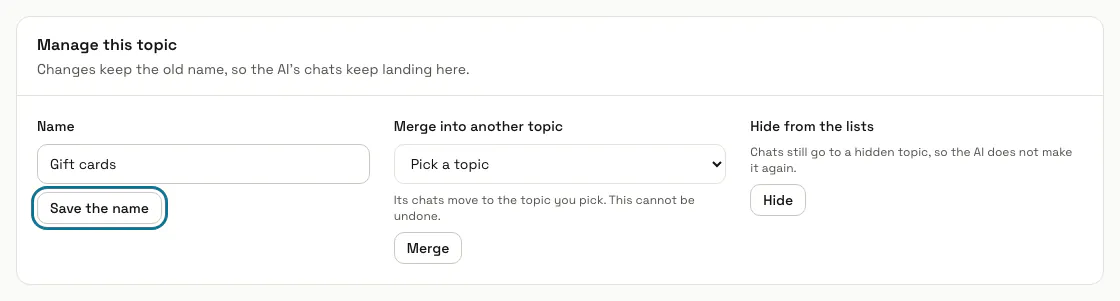
Step 4: Use "Manage this topic"
A manager can type a new "Name" and press "Save the name", "Merge" the topic into another one, or "Hide" it from the lists and alerts. The old name is kept, so the AI keeps putting chats in the same topic.
Merging moves every chat of the topic into the one you pick, and it cannot be undone.
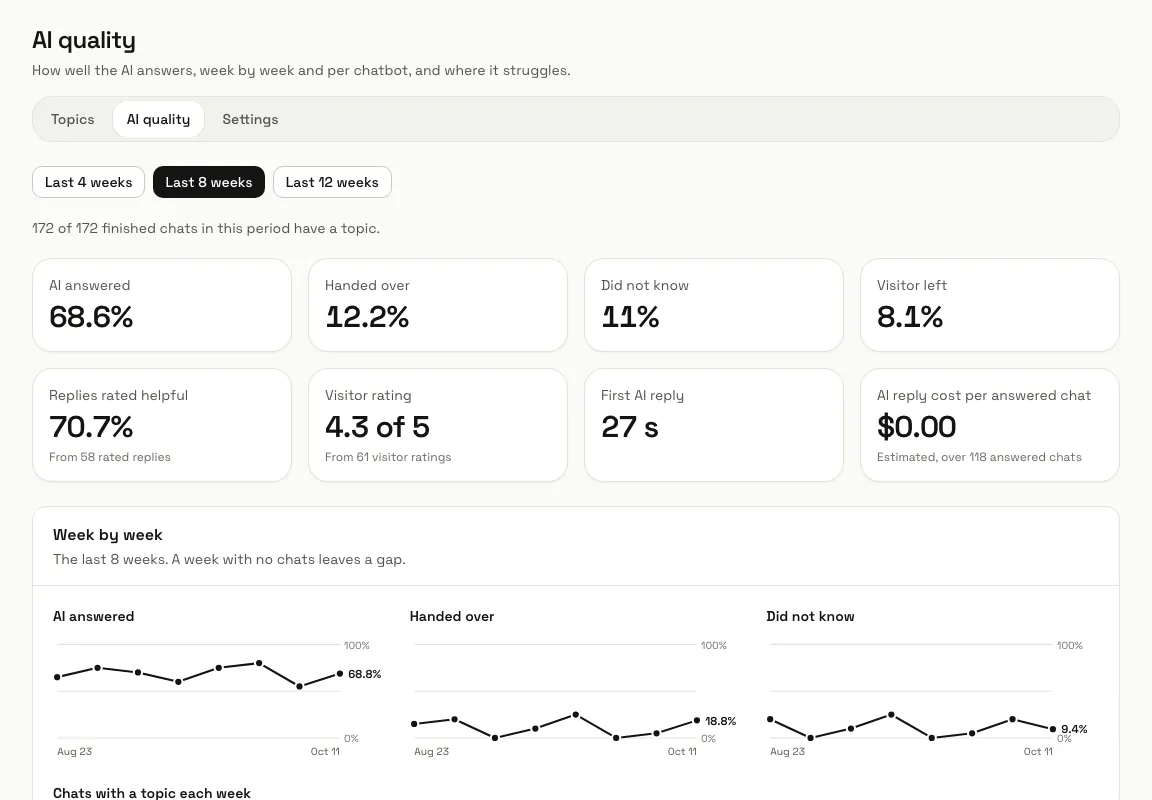
Step 5: Open the AI quality tab
See how often the AI answered, handed over, did not know or the visitor left, with ratings, the first reply time and the reply cost per answered chat, week by week and per chatbot. "Where the AI struggles" names the topics doing worst, and "Next steps" links to adding knowledge, unanswered questions, pinned answers and answer tests.
Step 6: Read the chats behind a number
Each number opens the chats behind it, with their topic, outcome and how the visitor seemed: Happy, Neutral or Unhappy. "Open in the inbox" opens the conversation.
Step 7: Set the alerts and the daily limit
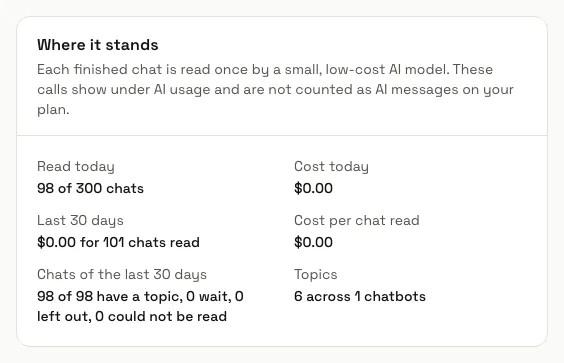
In Settings, "Alerts" tells the managers in their notifications and the daily digest when a topic jumps or the answers get worse; it is on unless you turn it off, and "When to alert" sets the thresholds. "Chats read a day" can be set lower than your plan allows. "Where it stands" shows what was read today and what it cost.
Tips
- "Answered by the AI" means no person was needed. "Handed to a person" means someone was asked for or wrote in the chat. "Did not know" means a fallback reply, a logged knowledge gap or a last message with no reply. "Visitor left" means the visitor stopped before getting what they came for.
- A hidden topic still takes chats. The list shows it under "Hidden topics", with "Show" to bring it back.
- A team member's own test chats are left out.
Limits and switches
- Insights is off until an Owner or Admin turns it on in Apps.
- Your plan sets how many chats a day Insights may read: 300 unless your plan says otherwise. Reading is recorded under AI usage and is not counted as AI messages on your plan.
Stuck on a step? Ask our team