Account, billing and plans
Workspace settings
Your company name, the two-step login rule, business hours, abuse protection and the brand your chat shows.
Who can use it: Owner and Admin, or a custom role with "Change workspace settings and connections".
Step 1: Open Settings
Settings in the left menu opens "Workspace settings". The row of links at the top leads to the other settings pages your role can open: Workspace, Brand, Email, API tokens, Team, Roles, Routing, Billing, Audit log, Privacy requests, Notifications and Your profile.
Step 2: Change the "Company name"
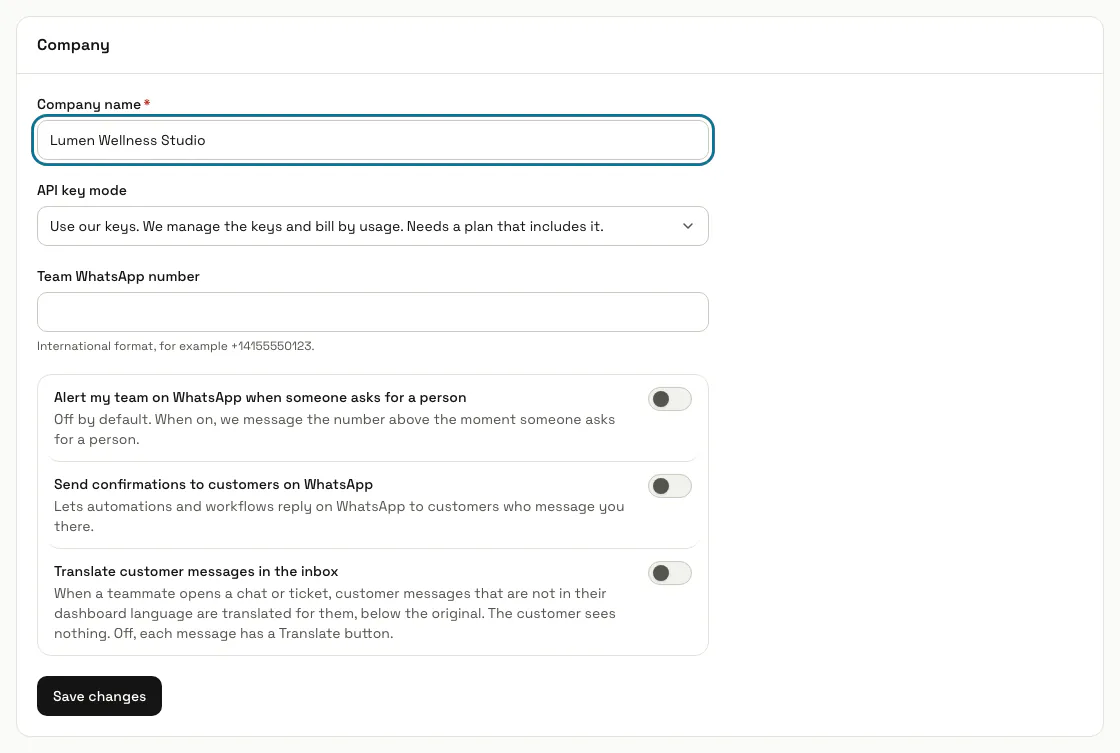
The "Company" panel holds your workspace's name, the "API key mode" (see AI keys and answer quality), a "Team WhatsApp number" and three switches: "Alert my team on WhatsApp when someone asks for a person", "Send confirmations to customers on WhatsApp" and "Translate customer messages in the inbox" (off to start with: when on, a customer message not in a teammate's dashboard language is translated for them as they open the chat). Press "Save changes".
WhatsApp alerts are off by default and need the team number; switching them on without one is refused.
Step 3: Choose who must use two-step login
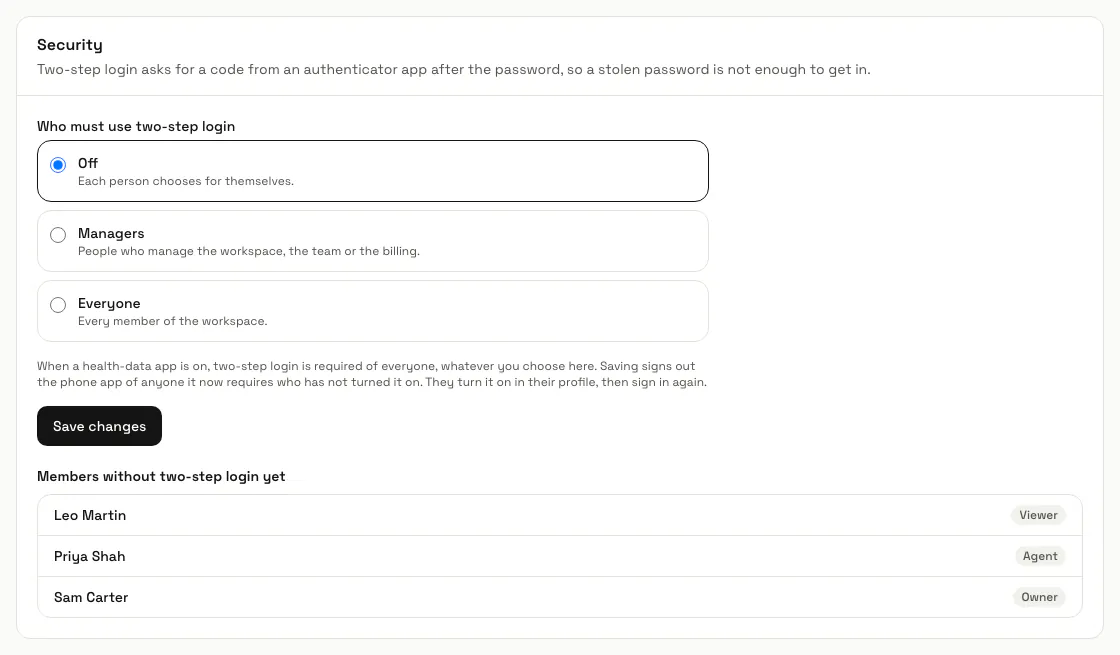
Under "Security", pick "Off" (each person chooses), "Managers" (people who manage the workspace, the team or the billing) or "Everyone", then press "Save changes". "Members without two-step login yet" lists who still has to turn it on. Saving signs those it now requires out of the phone app until they turn it on in their profile, and the dashboard sends them to their profile first.
Step 4: Turn on "Use business hours"
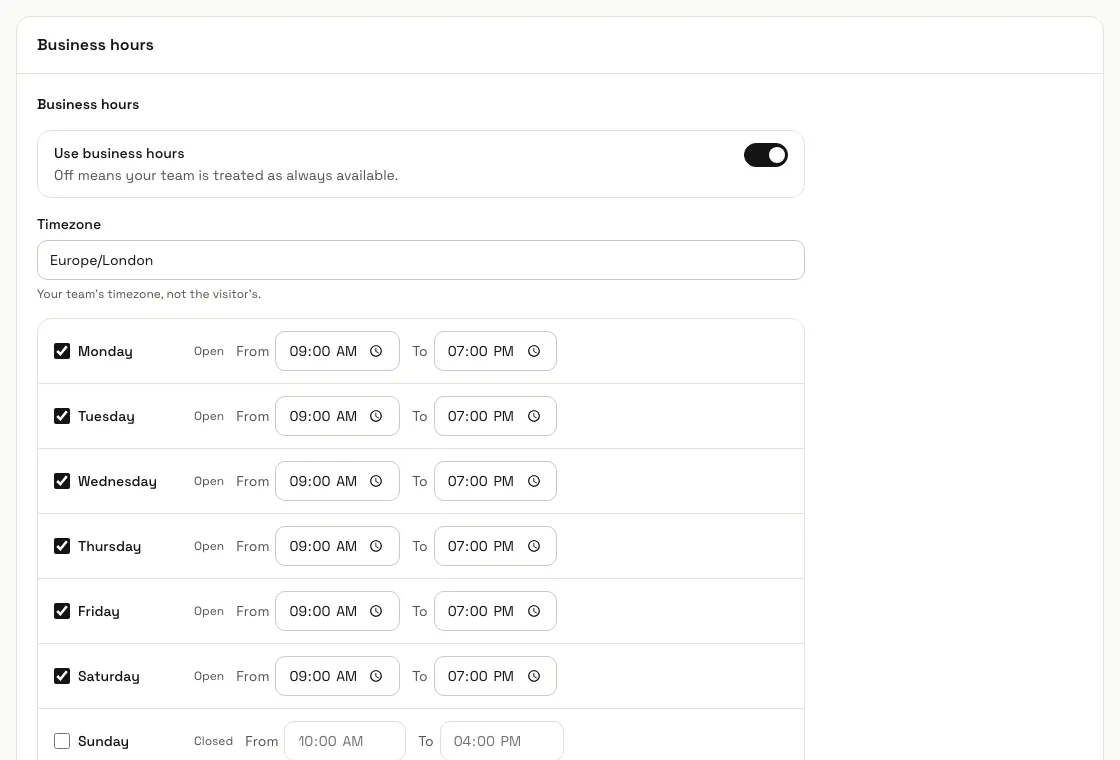
Under "Business hours", pick your team's "Timezone", set each day to Open or Closed with its hours, and list "Holidays", one date per line. "Outside business hours" decides what a chat gets when nobody is in: "Still queue the chat for a human", "Queue it and ask for an email address" (recommended) or "Let the assistant keep handling it".
Step 5: Set up "Abuse protection"
"Warn and stop replying to abusive visitors" is on for a new workspace. Set the "Warnings before the assistant stops replying" (a threat counts as two) and add "Extra words to treat as abusive", one per line. The transcript is always kept and your team can still reply by hand. Press "Save changes" under the panel.
Step 6: Press "Save brand"
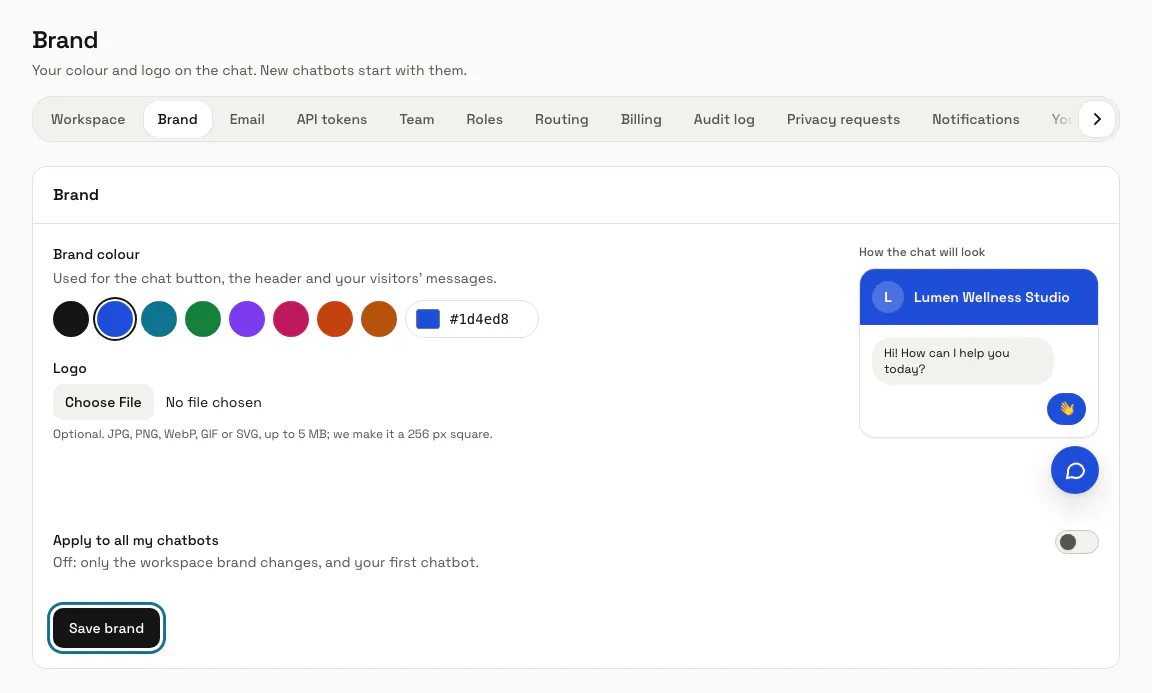
Settings, Brand sets the colour and logo of your chat: pick a swatch or "Your own colour", add a JPG, PNG, WebP, GIF or SVG logo up to 5 MB, and check "How the chat will look". New chatbots start with this brand; switch on "Apply to all my chatbots" to change the ones you have, otherwise only the workspace brand and your first chatbot change.
Tips
- Language is set by each person in Your profile, not for the whole workspace.
- How your workspace sends email has its own page, Settings, Email. API tokens for your own software are on Settings, API tokens.
- "Send WhatsApp alerts outside hours too" is off by default, so a chat at 3 in the morning does not wake anyone.
Limits and switches
- Only Owners and Admins (or a custom role with that permission) see Settings; everyone else gets Your profile there.
Stuck on a step? Ask our team