Account, billing and plans
AI keys and answer quality
Run your assistant on MagizAI's AI keys or on your own provider keys, and choose how capable its answers are.
Who can use it: Owner and Admin, or a custom role with "Change workspace settings and connections". Choosing "Answer quality" or a model on a chatbot needs "Create, edit and delete chatbots" (Owner and Admin).
Step 1: Choose the "API key mode"
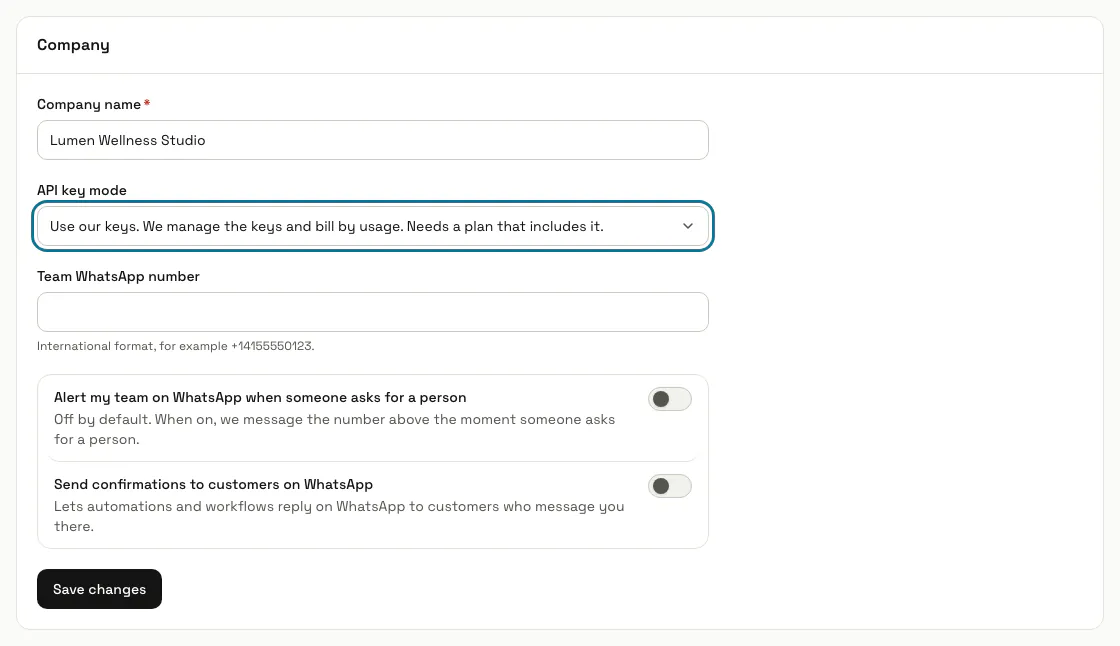
In Settings, the "Company" panel offers "Use our keys" (we manage the keys and bill by usage) and "Use your own keys" (your AI provider bills you directly). A choice your plan does not include is greyed out. Press "Save changes".
A mode your plan does not allow is refused with a message naming your plan, such as "needs your own API key" or "uses our managed keys".
Step 2: Pick an "Answer quality"
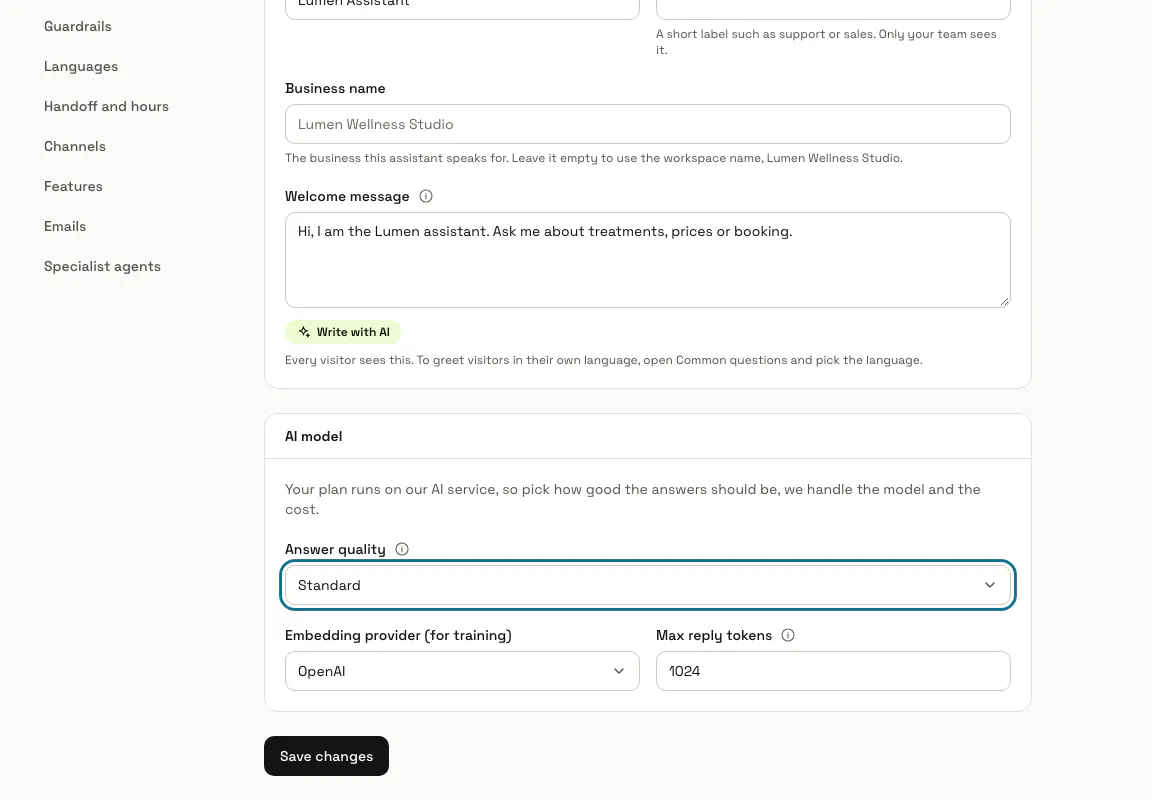
On our keys, each chatbot picks "Fastest", "Standard" or "Advanced" on its Settings tab, in the General section under "AI model". MagizAI chooses the model behind each level, and your plan decides which levels you get. A higher level answers detailed questions better; a lighter one replies a little faster.
If the section says "No AI options are available on your current plan", contact support or move to a plan that includes them.
Step 3: Press "Save key"
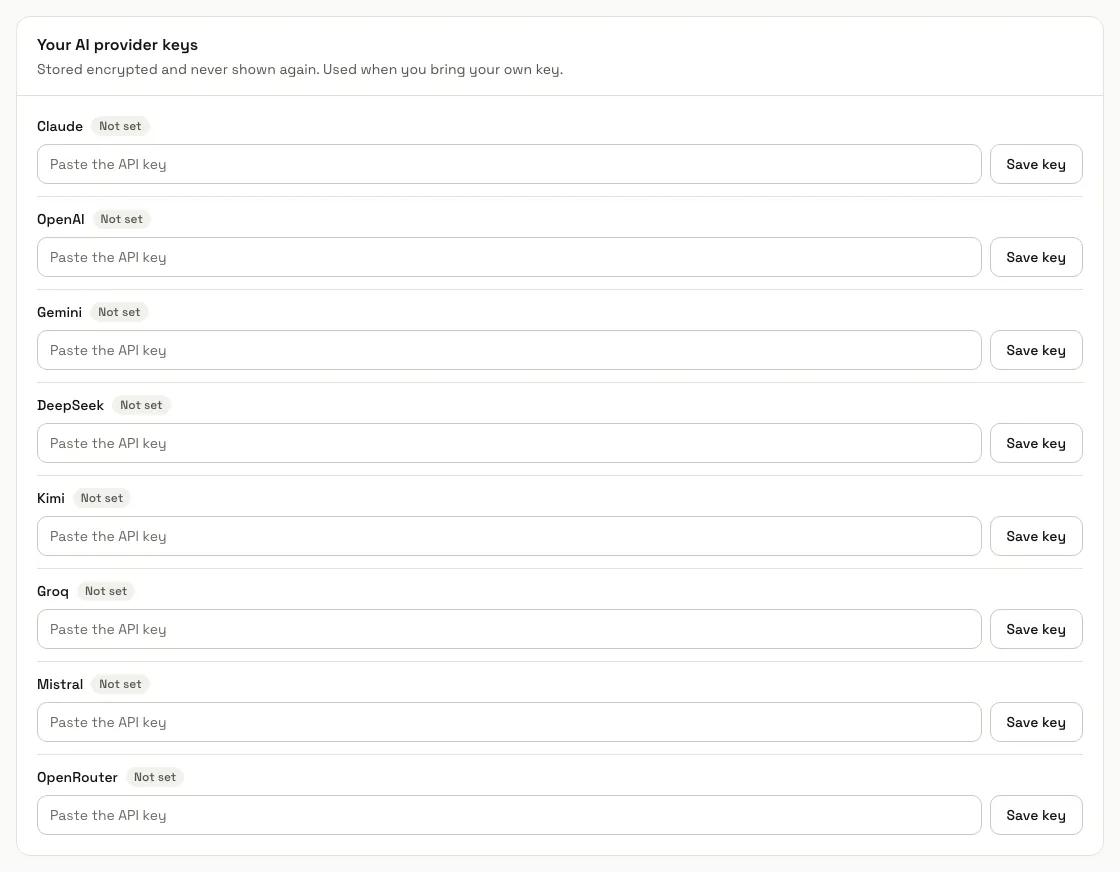
For your own keys, find the provider under "Your AI provider keys" (Claude, OpenAI, Gemini, DeepSeek, Kimi, Groq, Mistral or OpenRouter), paste the key in "Paste the API key" and press "Save key". It is stored encrypted and never shown again; the row then shows "Ends in" with its last four characters.
Step 4: Choose the "Provider" and "Model"
On your own keys, the chatbot's General settings show "Provider" and "Model" instead of the quality levels, so you pick exactly which model answers. Your provider bills you directly.
Step 5: Press "Remove" on a key you no longer use
MagizAI asks "Remove this key?" first. What happens next depends on the "API key mode". On "Use your own keys", the only mode on a plan without our keys, chatbots that used it answer with another provider key you have saved, on that provider's default model, and stop answering when no other key is saved. On "Use our keys", they keep answering on our keys.
Step 6: Watch your AI messages this month
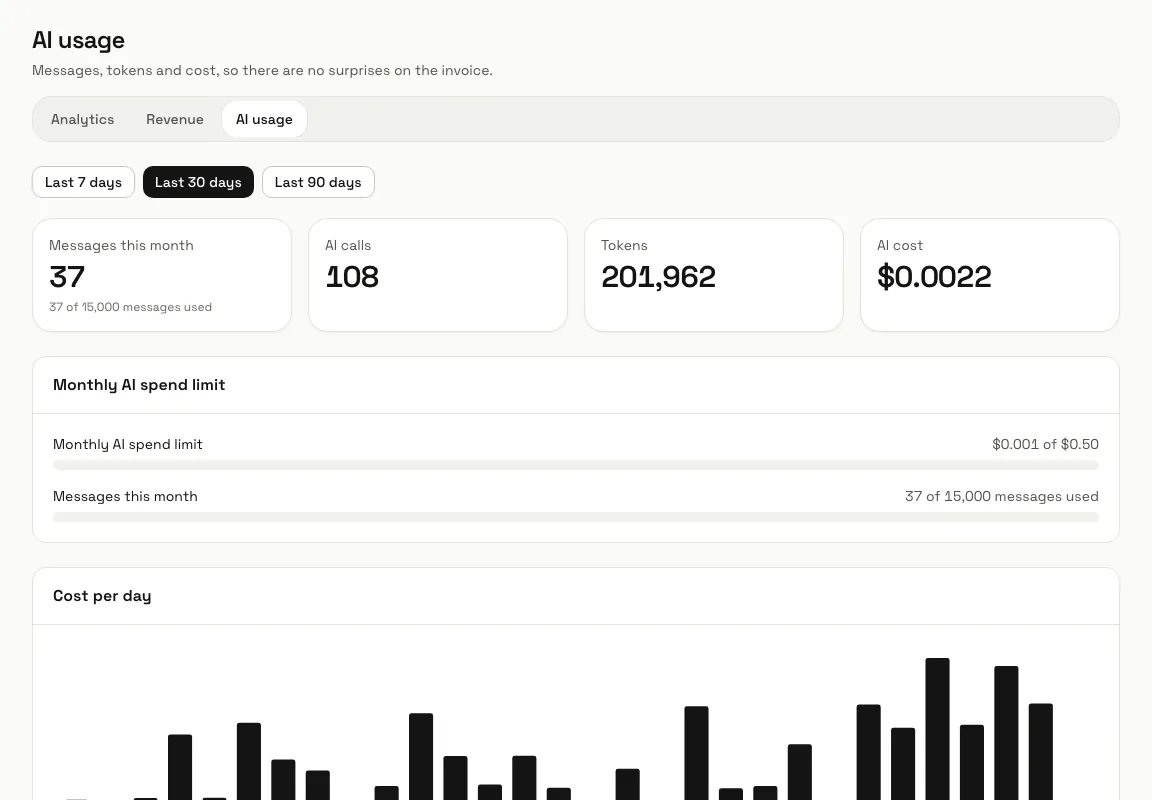
Billing shows "AI messages this month" and "Messages left this month". Reports, AI usage shows "Messages this month", the tokens and the cost, and the "Monthly AI spend limit" where one applies. When the month's messages run out, visitors get "We've hit our message capacity for now." until the count resets.
Tips
- Keys belong to the whole workspace: every chatbot on your own keys uses the key saved for its provider.
- AI usage needs "See analytics and reports", so Agents and Viewers can open it too.
Limits and switches
- Your plan decides whether you may use our keys, your own keys or both, and which answer quality levels you get.
- Your plan sets the AI messages a month. On our keys a monthly cap always applies; on your own keys there is none unless your plan sets one.
- The month runs from the day of the month your workspace was created, not from the 1st.
Stuck on a step? Ask our team