Account, billing and plans
Workspace email
How the email your workspace sends reaches people, through MagizAI or your own mail server, and the words it uses.
Who can use it: Owner and Admin, or a custom role with "Change workspace settings and connections".
Step 1: Open Settings, then "Email"
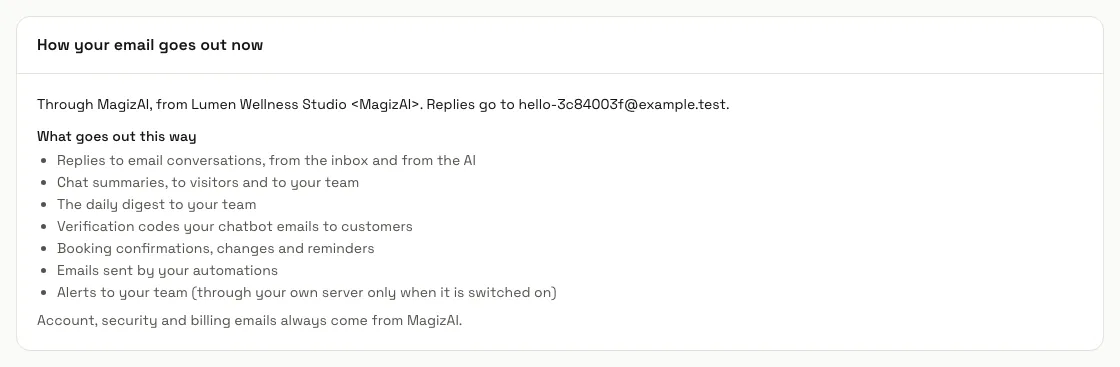
"How your email goes out now" says whether email leaves through MagizAI or your own server, from which name and address, and where replies go. "What goes out this way" lists it: replies to email chats, chat summaries, the daily digest, codes your chatbot emails, booking emails, automation emails and team alerts. Account, security and billing emails always come from MagizAI.
Step 2: Fill in the "Reply-to address"
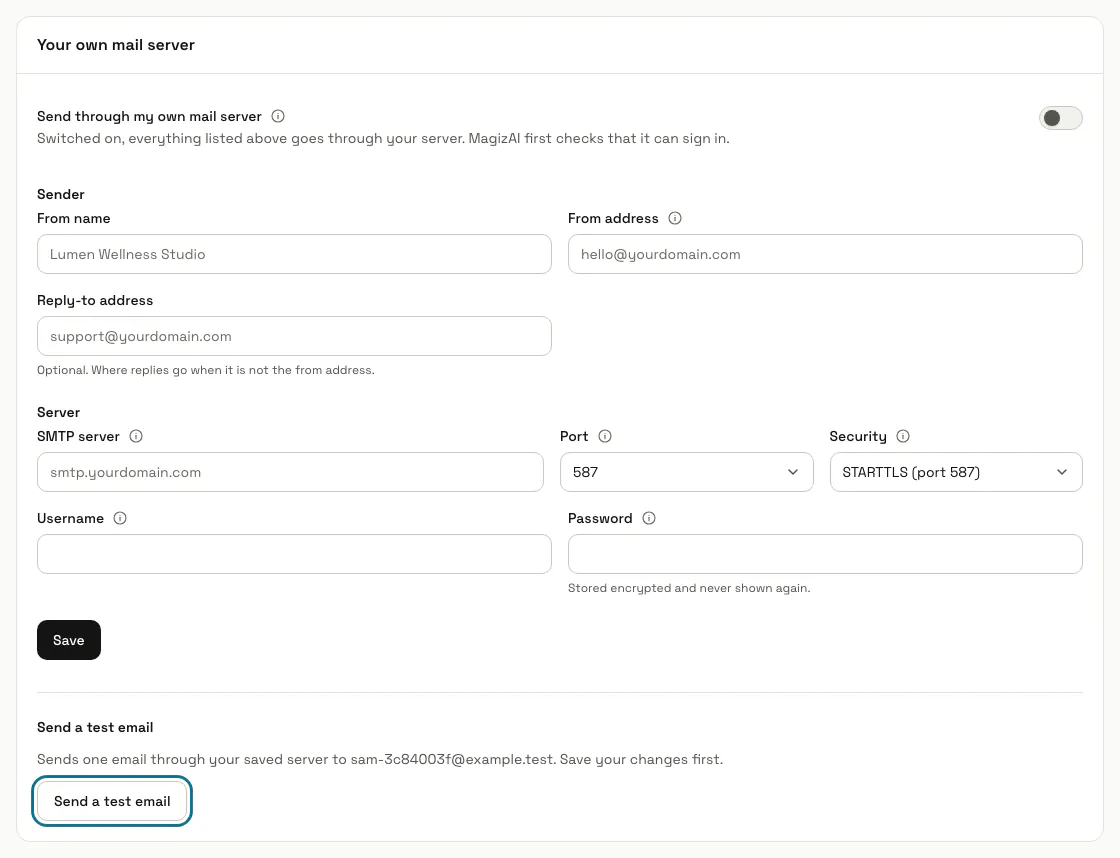
Under "Your own mail server", the "Sender" part holds the "From name" and a "Reply-to address"; press "Save". With your own server off, email still goes out through MagizAI, with your from name, and replies go to the reply-to address.
Step 3: Switch on "Send through my own mail server"
Fill in the "SMTP server", "Port", "Security" (STARTTLS on port 587 or SSL/TLS on port 465), "Username", "Password" and "From address", then press "Save". MagizAI first checks it can sign in to your server; if it cannot, the settings are kept but stay off ("Saved, but not switched on") and email keeps going out through MagizAI.
Step 4: Press "Send a test email"
The test sends one email through your saved server to your own address, so save your changes first. "Test email sent to" means it left: check your inbox, and the spam folder.
Step 5: Switch on "Email my team a daily digest"
Under "Daily digest", pick the hour in "Send at" (your workspace's time zone) and "Send it to" everyone who gets email alerts or only the addresses you list. It goes out only on days with chats; "Send me yesterday's digest" sends a copy to you alone.
Step 6: Press "Edit" on an email template
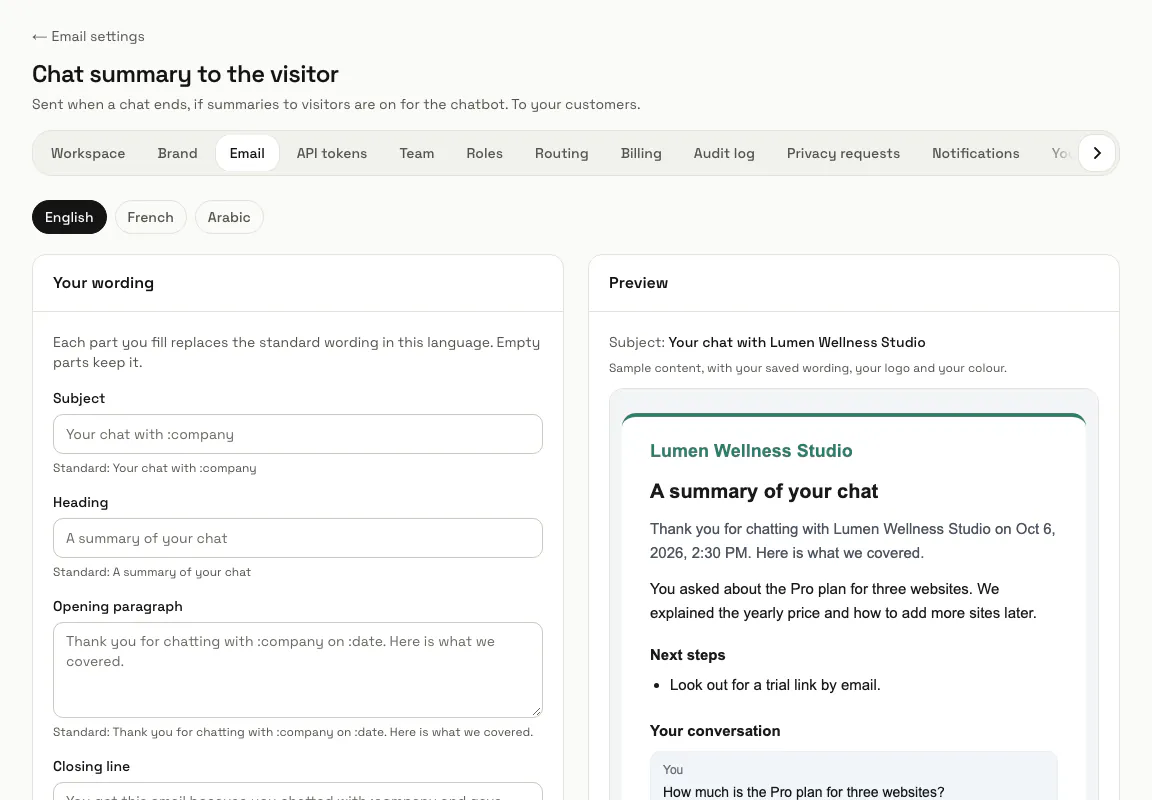
"Email templates" lists the emails your workspace sends, such as the chat summaries, the verification code and the booking emails. Pick a language, fill only the parts you want in your own words, check the "Preview" and press "Save"; "Use the standard wording" goes back.
Step 7: Press "Allow again" for an unsubscribed address
"Unsubscribed addresses" lists people who used the unsubscribe link in one of your emails: they get no follow-ups or chat summaries, though booking confirmations and codes they ask for still arrive. "Allow again" lets one of them get follow-ups again, so use it only when they ask.
Tips
- "Email the customer when a teammate joins" sends the customer an email the first time one of your team replies in a chat, so they come back to it. It is off by default and needs the customer's email.
Limits and switches
- Your own mail server needs its public name, such as smtp.yourdomain.com; an address inside a private network is refused.
Stuck on a step? Ask our team