Account, billing and plans
Plans and billing
Choose or change your plan, pay, keep a way to pay on file and find your invoices.
Who can use it: Owner and Admin, or a custom role with "See and manage billing and the plan". Billing stays open to them even while the rest of the dashboard is paused for payment.
Step 1: Open Billing
Open Settings and then Billing, or Billing in the workspace menu at the top of the left menu. The Overview shows your "Current plan", "AI messages this month" and "Messages left this month" with the day they reset; on your own AI keys the last card is "Est. usage cost" instead.
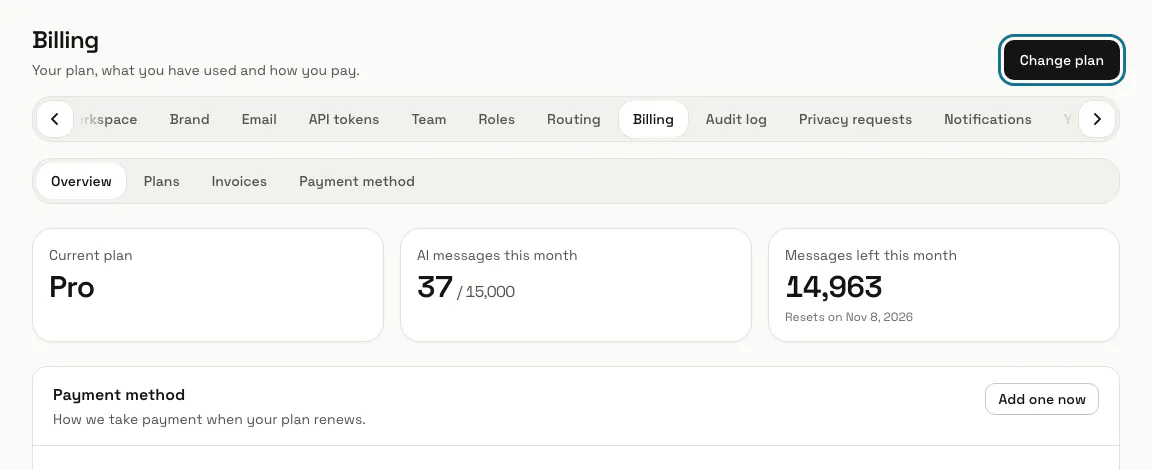
Step 2: Press "Change plan"
"Choose a plan" shows a card for each plan with what it includes. Switch between "Monthly" and "Yearly" where plans come in both, tick the box agreeing to the terms of service and the refund policy, and press the "Choose" button of the plan you want; "Current" marks the one you are on.
Step 3: Pay with the payment provider
Where more than one way to pay is offered, "Pay with" lets you pick one. You pay on the provider's own page, where any coupon code for a subscription is entered. A paid change starts as soon as the payment clears.
If the page says "Online payment is not set up on this platform yet. Contact support to change your plan.", the buttons read "Not available yet": contact support.
Step 4: Save a payment method
On the "Payment method" tab, choose how you would like to pay and save it; you are not charged then. MagizAI keeps only the card brand, its last four digits and a token from the provider, to charge when your plan renews. "Remove" takes it off, and the plan does not renew without one.
If Billing shows "A payment method is needed", add one within the days it gives. After that the workspace is paused until a card or PayPal account is on file, while your website chat keeps answering.
Step 5: Open "Invoices"
Every charge is listed with its "Issued" and "Due" dates, the "Amount" and a status such as "Paid", "Unpaid" or "Overdue". Open one to see its lines, and press "Print or save as PDF" for your accountant.
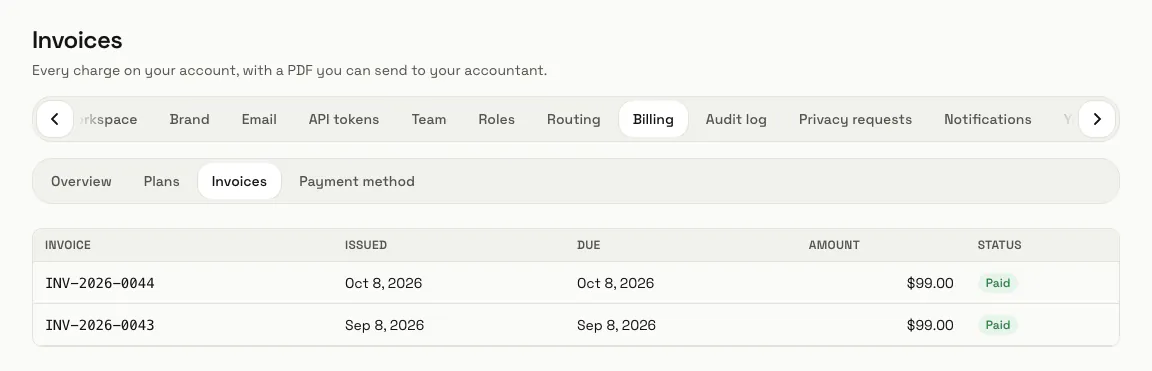
Step 6: Press "Pay now" on an unpaid invoice
When your plan renews by invoice, the invoice is raised before it is due and MagizAI tries your saved card. When a payment fails, the invoice shows "The last payment attempt failed" with the reason: press "Pay now" on it, or save a different card.
If we email you "Your payment is overdue", it gives the date your chatbot stops answering visitors unless the payment goes through. Nothing is deleted, and paying the invoice starts the chatbot again.
Step 7: Press "Cancel subscription"
When your plan runs as a subscription, the "Subscription" panel on the Overview shows when it renews and how it is paid. Cancelling keeps your plan until the end of the period you paid for, and "Resume subscription" brings it back before then.
Step 8: Read "What your plan includes"
On the Overview, "What your plan includes" lists the features a plan can include or leave out: the co-pilot, agent actions, connectors, WhatsApp, the email inbox, product recommendations, the REST API, business hours and routing, analytics export and the white-label portal, each "Included" or "Not included", and how many knowledge sources you may add. A feature the plan leaves out shows the plan that includes it. "Kept for this workspace" marks a feature your workspace already had before plans were checked on 19 October 2026, and keeps.
Tips
- Billing and Your profile stay open even when the rest of the dashboard is paused, so a card can always be fixed.
- Optional extras are under "Add-ons" on the Overview, billed separately from your plan.
Limits and switches
- There is no free plan and no free trial. A workspace without a plan shows "No plan yet" in the workspace menu.
- If a page says "Your workspace needs an active plan", press "Go to billing" and choose one; teammates without billing rights are asked to contact the owner.
- When the workspace has used its AI messages for the month, the chat replies "We've hit our message capacity for now." until the count resets on the date Billing shows, or until you move to a plan with more.
- A workspace made from 19 October 2026 gets exactly what its plan includes. A screen whose feature the plan leaves out says so at the top, names the plan that includes it and has a "See plans" button; nothing you set up is deleted.
Stuck on a step? Ask our team