Account, billing and plans
Your profile
Your own name, email, phone, photo, language, password and two-step login. Every member has one.
Who can use it: Everyone in the workspace. Each person changes only their own profile.
Step 1: Open "Your profile"
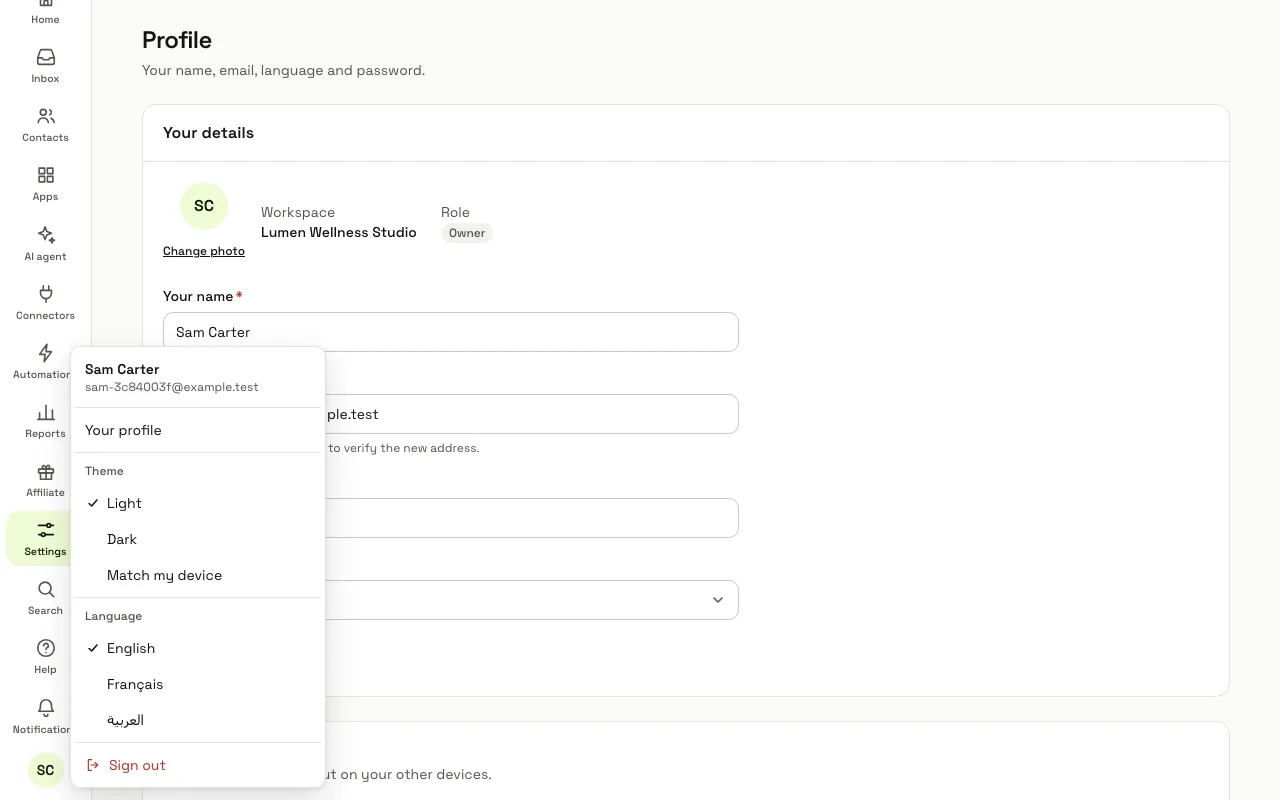
Open the account menu (your picture at the bottom of the left menu) and choose "Your profile". If you cannot change workspace settings, Settings in the left menu opens it too.
Step 2: Change "Your details"
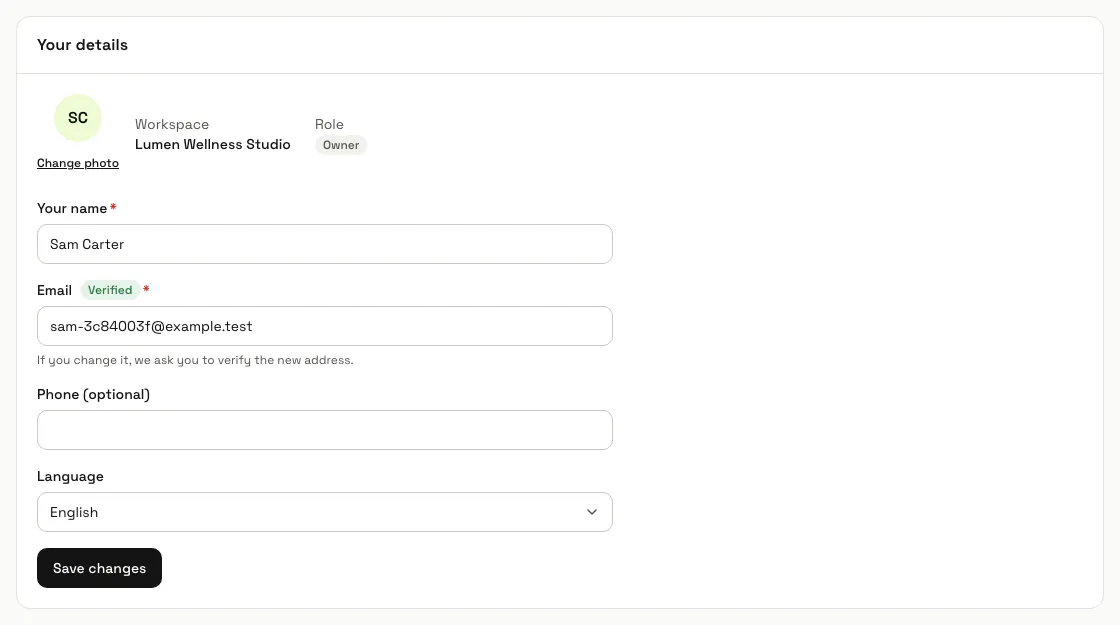
Edit "Your name", "Email", "Phone (optional)" and "Language", then press "Save changes"; "Change photo" sets your picture. If you change the email, we send a verification link to the new address, and it shows "Not verified" until you open it.
Step 3: Press "Change password"
Enter your "Current password", then the "New password" and "Confirm password" (at least 8 characters). Changing it signs you out on your other devices.
Step 4: Press "Turn on two-step login"
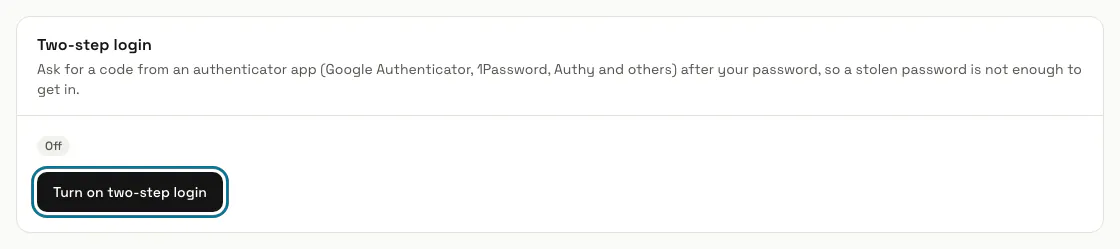
Scan the QR code with an authenticator app (Google Authenticator, 1Password, Authy and others), type the 6-digit code it shows and press "Confirm and turn on". Save the recovery codes shown next and press "I have saved them": each one signs you in once if you lose your phone, and they are not shown again.
Step 5: Sign in with your code
After your password, the sign-in page asks for the 6-digit code from your app; one of your recovery codes works too. If it says "That code did not work", check the time on your phone is right.
When your workspace requires two-step login of you, the dashboard sends you here with "Your workspace requires two-step login. Turn it on to continue." While that rule applies, it cannot be turned off.
Step 6: Pick a "Theme"
The account menu switches between "Light", "Dark" and "Match my device", and lists the languages of the dashboard. The theme is remembered on this browser; the language is saved to your account.
Step 7: Press "Delete my account"
Under "Delete your account", confirm with your password to remove your login for good; the workspace stays for your teammates. It is refused when you are the only person in the workspace, or the only one who can manage billing: make another teammate an admin first.
Tips
- /profile, the old address, opens the same page.
Stuck on a step? Ask our team