Channels and connectors
WhatsApp templates and test messages
Templates are the messages Meta approves in advance. WhatsApp needs one to write to someone more than 24 hours after they last wrote, and for every staff alert.
Who can use it: Owner and Admin, or a custom role with "Change workspace settings and connections".
Step 1: Know when a template is needed
Inside the 24 hours after a customer last wrote, replies go as ordinary messages. After that, WhatsApp delivers only an approved template, so a late reply from your team goes as the customer reply template with the reply inside it. A staff alert is always a template, because your team's phones never wrote to the number first.
Step 2: Press "Templates" on a number
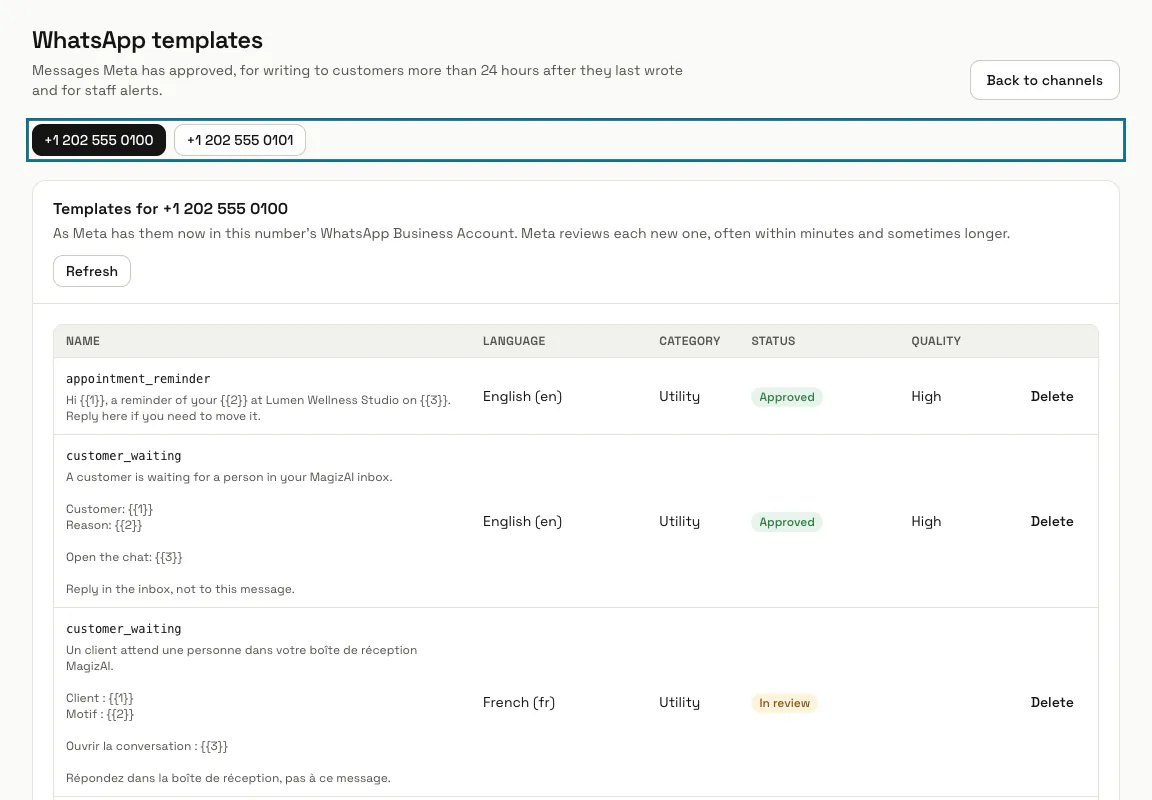
The WhatsApp templates page lists the templates of that number's WhatsApp account as Meta has them now: name, language, category, status ("Approved", "In review", "Rejected" with Meta's reason) and quality. Press "Refresh" after Meta reviews one. With several numbers, a button for each number sits at the top.
The page needs the number's "WhatsApp Business Account ID". Without it, add it with "Edit this number" on the Channels page.
Step 3: Create the templates MagizAI needs
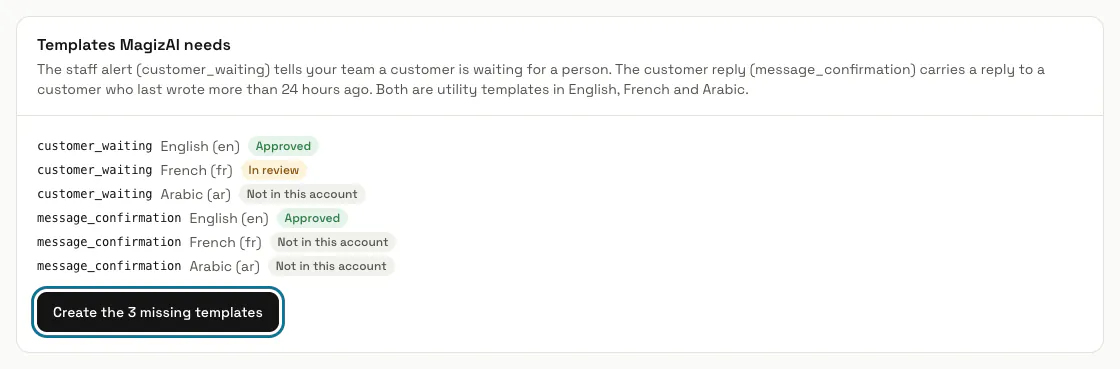
Under "Templates MagizAI needs", press "Create the 6 missing templates" (the count is however many are missing). It sends customer_waiting (the staff alert: the customer, the reason and the inbox link) and message_confirmation (a reply to a customer outside the 24 hours) in English, French and Arabic as utility templates, with sample values, and skips any your account already has. Meta reviews each one before it can be used, often within minutes and sometimes longer.
Step 4: Pick the templates on the number
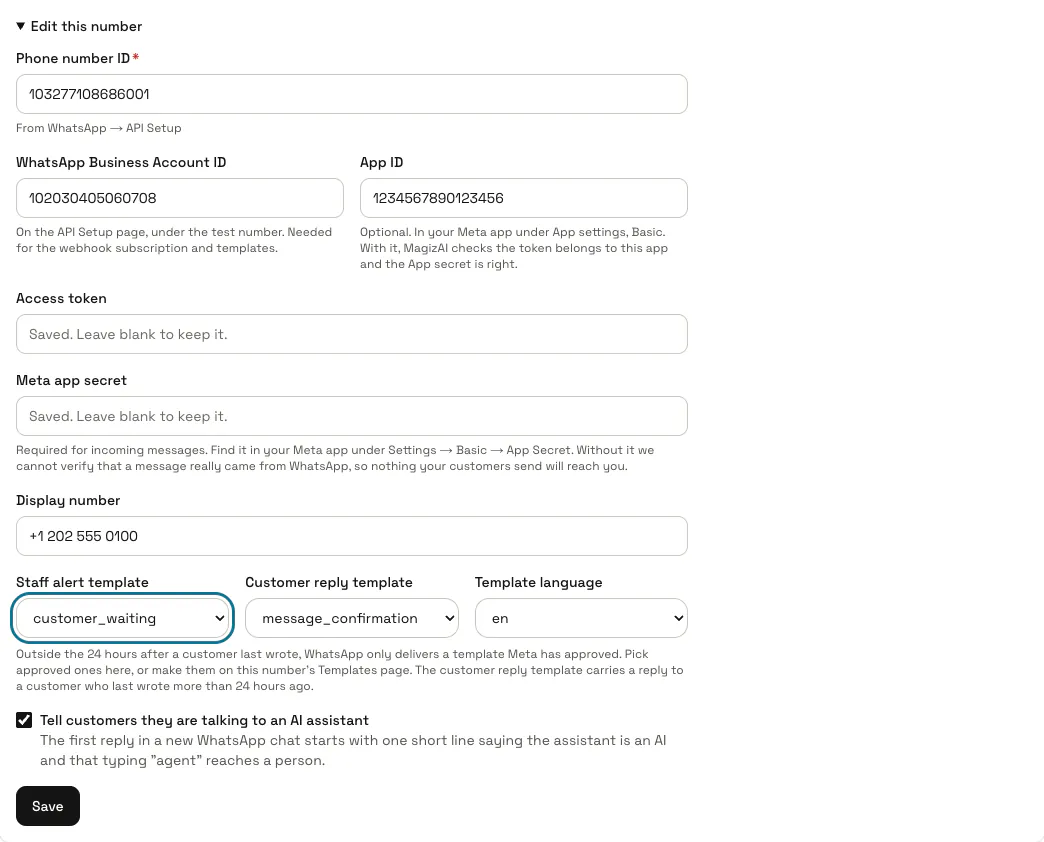
Press "Edit this number" on the Channels page. "Staff alert template", "Customer reply template" and "Template language" list the number's approved templates; "MagizAI default (customer_waiting)" and "MagizAI default (message_confirmation)" use the ones the button made. Press "Save".
Step 5: Make a template of your own
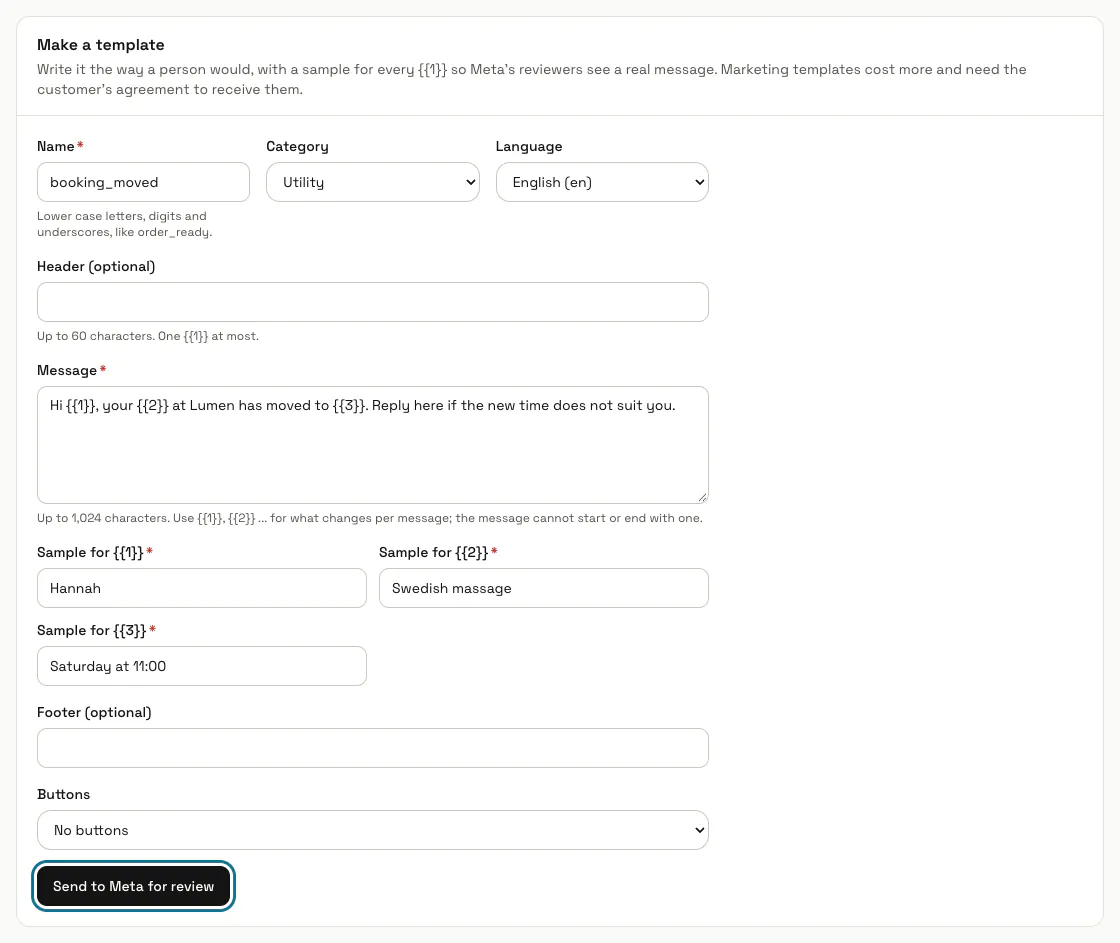
Under "Make a template", give it a name in lower case letters, digits and underscores, choose utility or marketing and a language, and write the message with {{1}}, {{2}} for what changes each time, with a sample for each. A header and a footer are optional, and you can add up to 3 quick replies or one link button. Press "Send to Meta for review".
MagizAI checks Meta's limits before sending: a message of up to 1,024 characters that does not start or end with a variable, a header and a footer of up to 60, button texts of up to 25. Marketing templates cost more and need the customer's agreement to receive them.
Step 6: Delete a template you no longer use
Press "Delete" on its row and confirm. Meta deletes it in every language, and a template with the same name cannot be made again for 30 days.
Step 7: Send a test message from a number
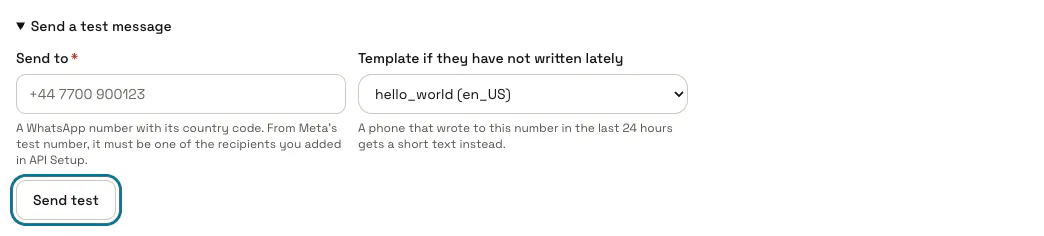
Open "Send a test message" under the number on the Channels page, type a phone number with its country code and press "Send test". If that phone wrote to this number in the last 24 hours it gets a short text; otherwise it gets the template you pick under "Template if they have not written lately" (hello_world first when your account has it). Meta's answer, or the reason it refused, shows under the button.
From Meta's test number, a message can only reach the numbers you added as recipients in API Setup.
Step 8: Switch on WhatsApp alerts for your team
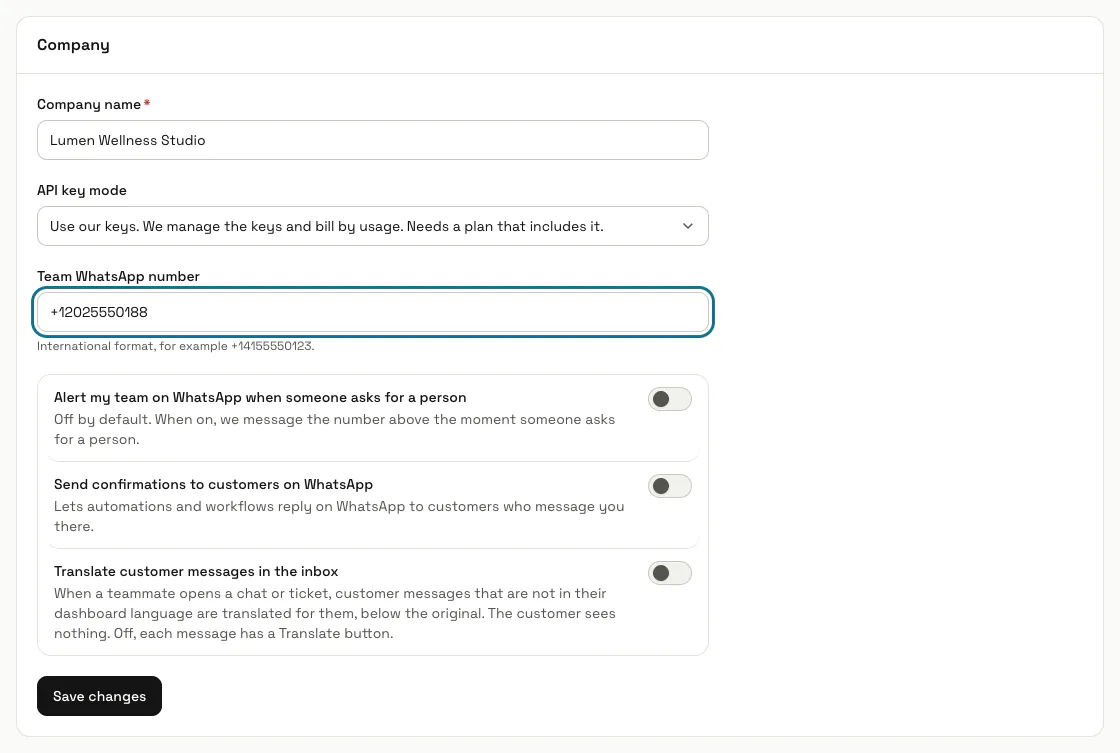
In Settings, under "Company", enter a "Team WhatsApp number", switch on "Alert my team on WhatsApp when someone asks for a person" (off by default) and press "Save changes". The alert uses the number's staff alert template.
Tips
- Templates belong to a WhatsApp account, not to a number: two numbers in the same account share them.
- Write a template the way a person would and give real-looking samples; Meta rejects templates whose purpose it cannot tell.
Limits and switches
- Authentication templates (one-time codes) are not offered on this page.
Stuck on a step? Ask our team