Channels and connectors
WhatsApp chats
What customers see on WhatsApp, how they reach a person, and what happens to their photos, voice notes and locations.
Who can use it: Owner and Admin, or a custom role with "Change workspace settings and connections". Answering these conversations in the inbox needs "Reply to, take over and assign conversations" (Owner, Admin and Agent).
Step 1: Decide whether the AI introduces itself
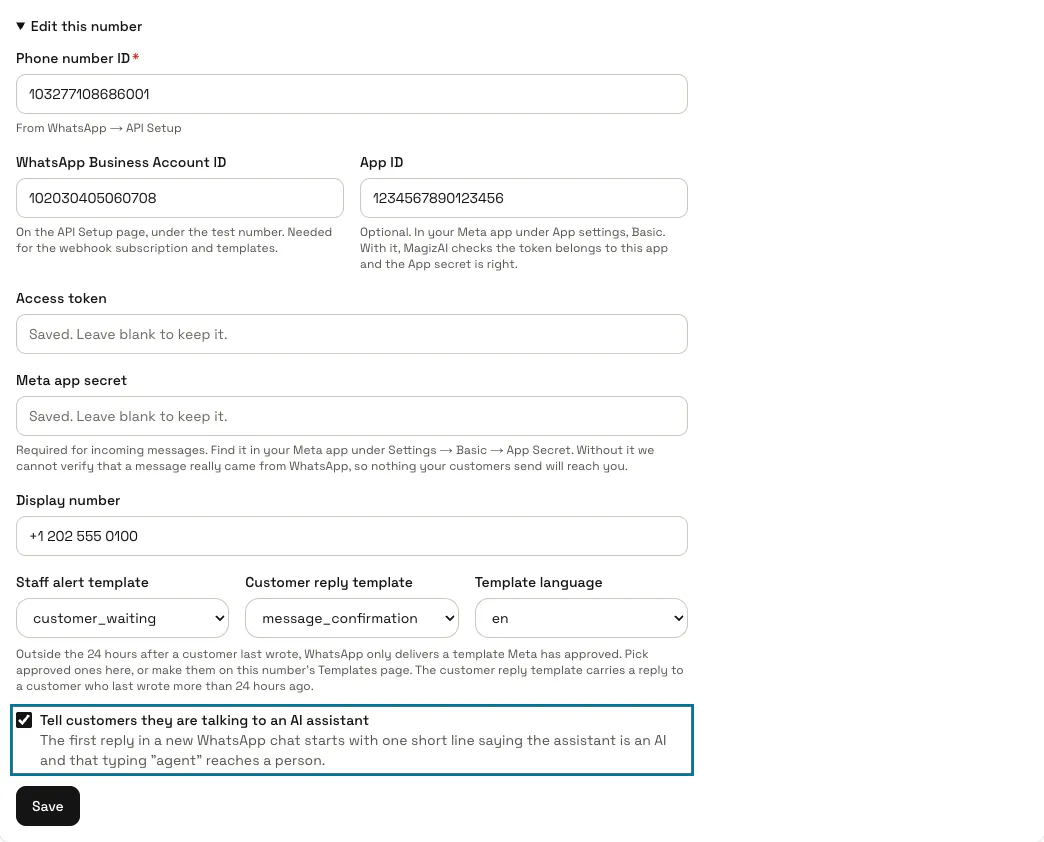
"Tell customers they are talking to an AI assistant" is on by default. The first reply in a new chat then starts with one line, in the customer's language, saying the assistant is an AI and that typing "agent" reaches a person. It is set for the whole workspace, in the form of any number.
Step 2: Let customers reach a person
A customer who types "agent", or asks for a person in their own words, is handed to your team: the chat waits in the inbox for a teammate, and the alerts you set up go out. Once a teammate replies, the AI stops answering in that chat. A customer who types "agent" to answer a question the AI just asked with choices, or in the middle of a booking, is giving that answer, not asking for a person.
Step 3: Expect buttons and lists
When the AI offers choices, up to 3 arrive as reply buttons and up to 10 as a list the customer opens. Longer ones come as a numbered list, and a customer who types the number gets that choice. Formatting is turned into WhatsApp's own: bold, italics and links read as WhatsApp shows them, and a long answer is split into several messages.
Step 4: Offer your suggested questions as a menu
After the AI's first answer in a new chat, the chatbot's suggested questions follow as buttons (up to 3 short ones) or as a list, in the customer's language when you wrote them in it. A tap is answered like a typed question. Set the questions in the chatbot's settings; an industry pack fills them in when the chatbot has none.
Step 5: Read photos, files and voice notes in the inbox
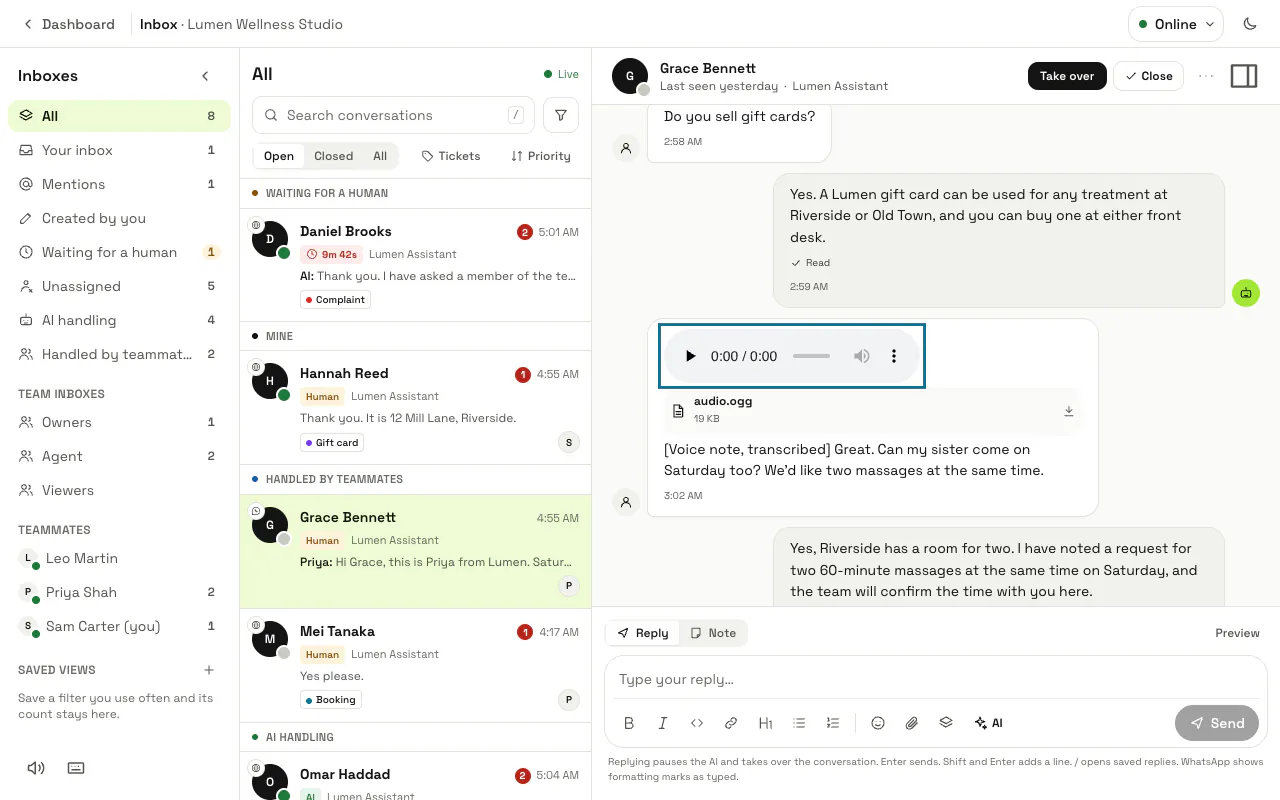
Photos, documents, videos, stickers and voice notes are kept with the chat, and the AI reads a line saying what was sent and its caption. A voice note is turned into text when the workspace's AI provider can; otherwise the customer is asked to type their question instead. A file over 10 MB is not kept: the chat shows a line saying it could not be saved.
Step 6: Know what else the AI answers
A shared location and a shared contact card are read and answered. A reaction (a thumbs-up on a message) is not answered. Anything else the assistant cannot read gets one short line asking the customer to write it as text, at most once an hour.
Step 7: Reply with a file from the inbox
A file a teammate attaches goes to the customer as the file itself: photos up to 5 MB, audio and video up to 16 MB, documents up to 100 MB. Outside the 24 hours, or over those sizes, its name goes as text instead and the reply says why.
Step 8: Read the ticks under each reply
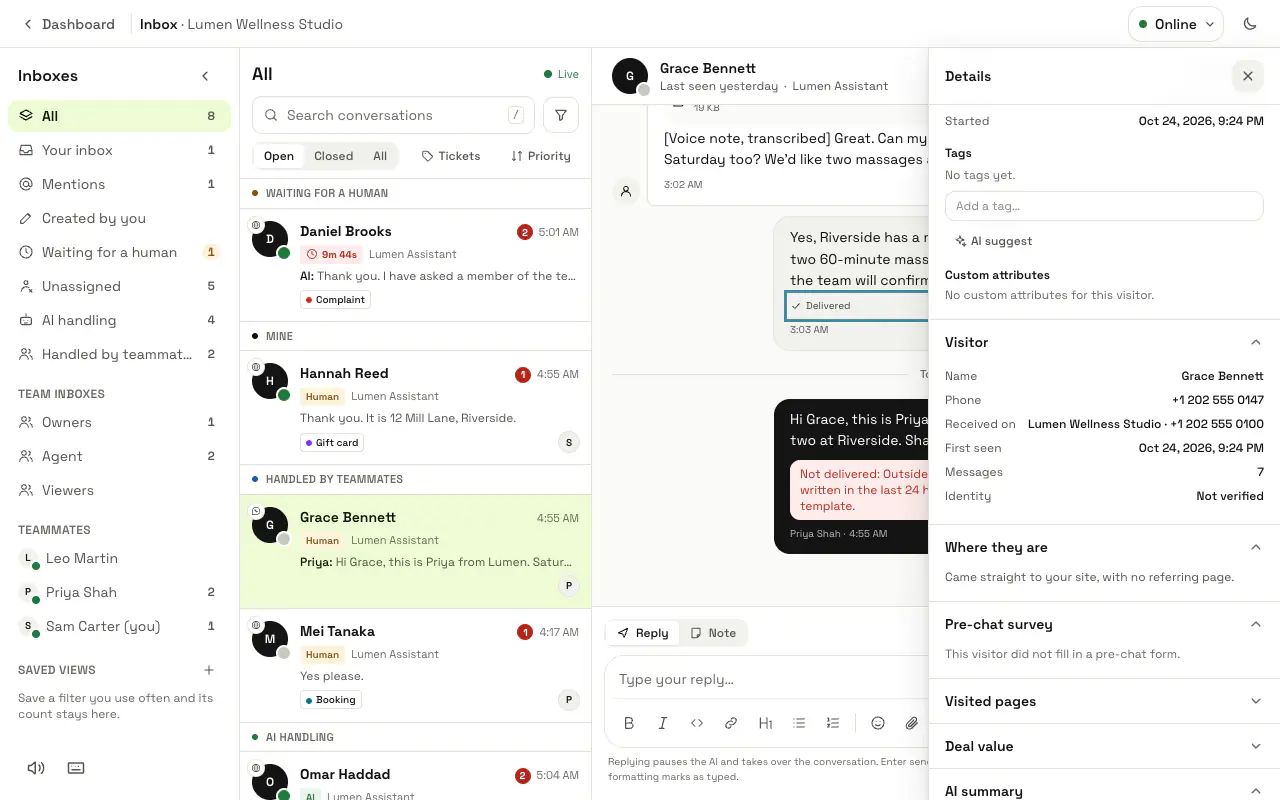
Under every reply sent on WhatsApp the inbox shows "Sent", "Delivered" or "Read" as WhatsApp reports it, or "Not delivered" with the reason. A reply WhatsApp refused stays in the inbox, so you can send it another way.
Tips
- A customer who keeps their number private shows as their @username or "Phone number not shared", and replies still reach them.
- Each conversation keeps the number the customer wrote to. A customer who writes to two of your numbers has a conversation with each.
Stuck on a step? Ask our team