Developers
AI API
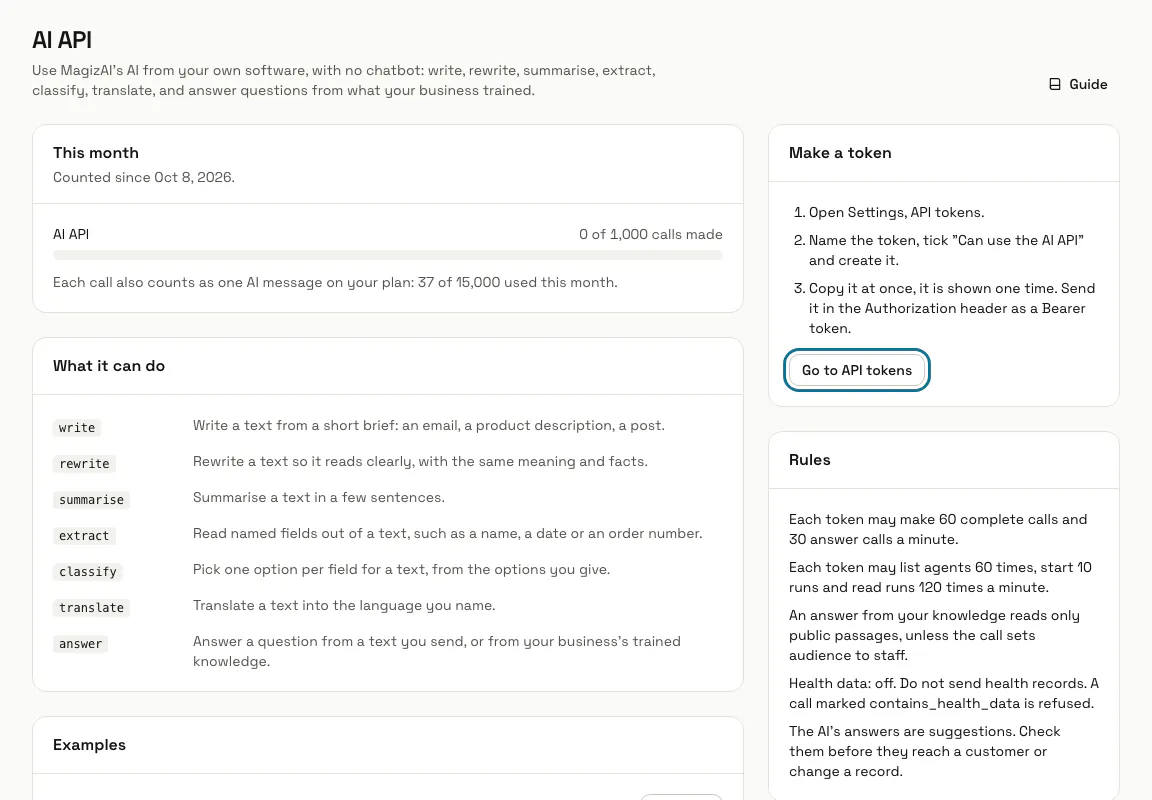
Use MagizAI's AI from your own software with an API token: write, summarise, extract, translate, answer from your knowledge and run your agents.
Who can use it: Owner and Admin, or a custom role with "Change workspace settings and connections". A token works only while the person who made it can still manage the workspace.
Step 1: Turn on AI API in Apps
The AI API is off until a manager turns it on. Press "Apps" in the left menu, find "AI API" and press "Turn on".
Step 2: Make a token with "Can use the AI API"
On the AI API page, press "Go to API tokens", name the token, tick "Can use the AI API" and press "Create token". Copy it at once and send it in the Authorization header as a Bearer token.
Step 3: Pick what the call should do
POST /api/v1/ai/complete takes a "purpose" (write, rewrite, summarise, extract, classify or translate) and the text in "input". Extract and classify answer with the fields you name, and translate needs a "language" such as "fr" or "French".
Step 4: Copy an example and send it
Under "Examples", press "Copy" beside a call, put your token in $MAGIZAI_TOKEN and run it. The examples summarise a text, read fields out of an email and answer from your business's knowledge.
curl -X POST https://magiz.ai/api/v1/ai/complete \
  -H "Authorization: Bearer $MAGIZAI_TOKEN" \
  -H "Content-Type: application/json" \
  -d '{"purpose": "summarise", "input": "Paste the text here."}'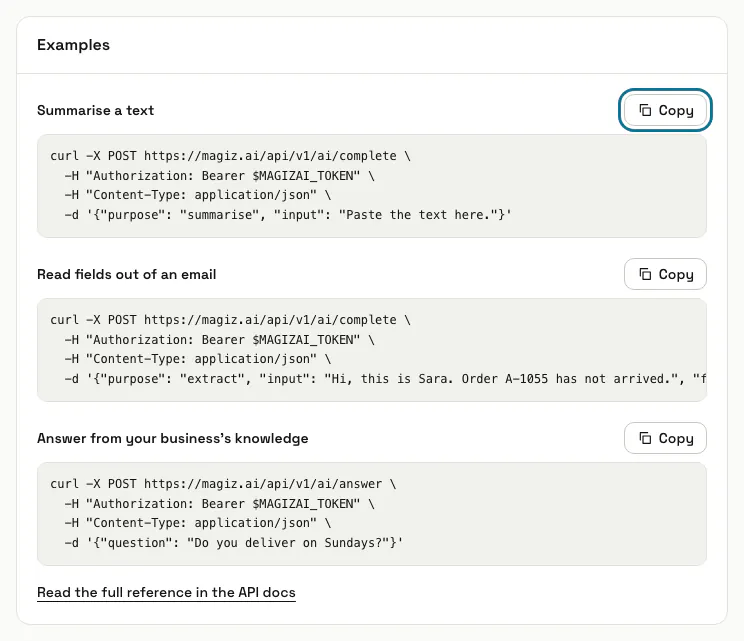
Step 5: Answer a question from your knowledge
POST /api/v1/ai/answer with a "question" answers from what your chatbots were trained on. It reads only public passages unless the call sets "audience" to "staff".
Step 6: Start a run of one of your agents
GET /api/v1/ai/agents lists your agents, POST /api/v1/ai/agents/{id}/runs starts one with a "task", and GET /api/v1/ai/runs/{id} reads how it went. Add "wait" (up to 25 seconds) to hold the call until the run ends; actions and drafts still wait for a manager in Agents.
Step 7: Watch "This month"
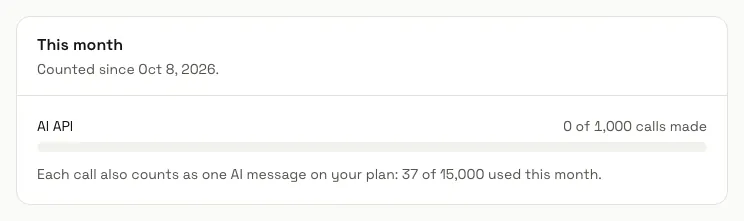
"This month" shows the calls made since your billing period started, against your plan, and the AI messages used. Each call, and each model call of an agent run, counts as one AI API call and one AI message.
Tips
- A refused call carries a stable code, such as app_off, no_ability, cap or rate_limited. The "Error codes" panel says what each one means.
- The AI's answers are suggestions: check them before they reach a customer or change a record.
- Each token may make 60 complete calls and 30 answer calls a minute.
Limits and switches
- Your plan sets the AI API calls a month: 1,000 unless your plan says otherwise. The count shows under "This month".
- Each call also counts as one AI message on your plan.
- Agent runs need the Agents app on as well, or the call is refused with agents_off.
- The AI API is off until a manager turns it on in Apps.
Stuck on a step? Ask our team