Troubleshooting
Troubleshooting
What to check first when the chat does not show, replies stop, training stalls, or a code or an email does not arrive.
Who can use it: Everyone in the workspace. Each fix names the screen it needs; most of them need an Owner or Admin.
Step 1: Check the browser console when the chat does not show
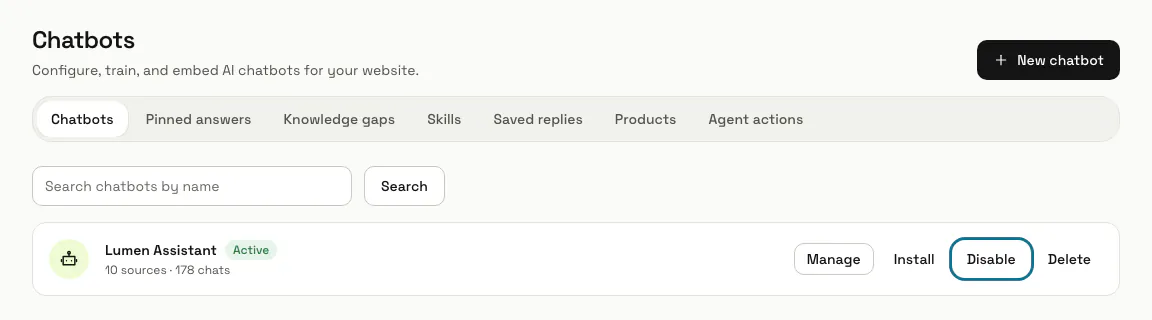
Open your site and its developer console. "[MagizAI] missing data-key on the embed script" means the line lost its data-key: copy it again from the chatbot's Install page. "[MagizAI] failed to load widget config" means the key is wrong or the chatbot is paused: on AI agent, a paused chatbot shows "Paused", and "Enable" switches it back on.
Step 2: Check "Messages left this month"
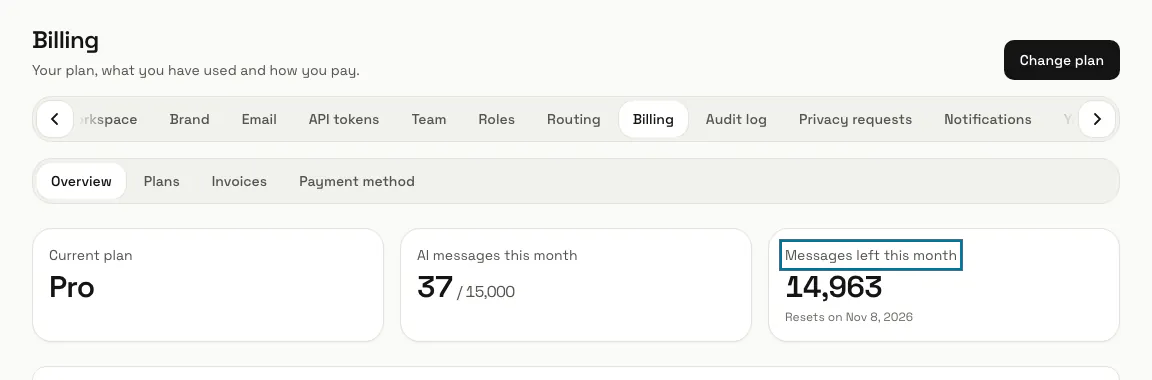
When the chat replies "We've hit our message capacity for now.", the workspace has used its AI messages for the month or reached its monthly AI spend limit. Billing shows "Messages left this month" and when they reset; a plan with more messages lifts it.
Step 3: Check for an unpaid invoice
When every visitor gets "Our live chat assistant is offline at the moment.", the workspace has a payment overdue past its grace period, or no plan. Press "Pay now" on the unpaid invoice in Billing, Invoices, or choose a plan; the chatbot answers again once the payment goes through.
Step 4: Check the status of each training source
On the chatbot's Train tab, each source shows "Waiting", "Reading", "Trained", "Failed" or "Unreachable". A failed page says why on its row, such as "The site refused to show this page (HTTP 403)", which a login or a bot block causes; fix the page or its address and press "Retrain". A source that stays on "Waiting" for long is queued for training: contact support if it does not move.
Step 5: Check the app is switched on
The Apps menu lists only apps that are on for your workspace and that your role may open. Opening an app that is off shows a line such as "Bookings is off for this workspace." on the Apps page, where an Owner or Admin presses "Turn on"; its data is kept while it is off.
Step 6: Check the teammate's role
Each menu item needs a permission: Inbox needs "See the shared inbox and conversations", Contacts "Reply to, take over and assign conversations", Reports "See analytics and reports", and Connectors, Automations and Settings "Change workspace settings and connections". A page the role cannot open shows "We could not find that page": change the role in Settings, Team, or the permissions of a custom role in Roles.
Step 7: Check where the code comes from
Two-step login codes are never emailed: they come from the authenticator app you set up, or use one of your recovery codes; if a code is refused, check the time on your phone is right. Email verification is a link, not a code: it lasts 60 minutes, and "Send the link again" on the "Check your email" page sends a new one.
Step 8: Check how your email goes out
On Settings, Email, "How your email goes out now" names the way out; with your own server, "The last email through your server failed" gives the reason, and "Send a test email" shows whether it works. An address under "Unsubscribed addresses" gets no follow-ups or chat summaries, and without a reply-to address, replies go to MagizAI.
Tips
- The chatbot's Install page shows "Installed" and where it was last seen once the chat has loaded on your site, and "Not installed yet" until then.
Stuck on a step? Ask our team