Developers
The widget in code
Put the chat on your site with one script tag, open it from your own buttons, and tell it which signed-in customer is asking.
Who can use it: Everyone in the workspace. Generating, rotating and turning off the identity secret needs "Create, edit and delete chatbots" (Owner and Admin).
Step 1: Copy the script tag from the Install tab
Press "AI agent" in the left menu, open your chatbot and its "Install" tab. The "Code snippet" carries your chatbot's public key in data-key: paste it just before the closing </body> tag on every page.
<script src="https://magiz.ai/widget.js" data-key="YOUR_PUBLIC_KEY" defer></script>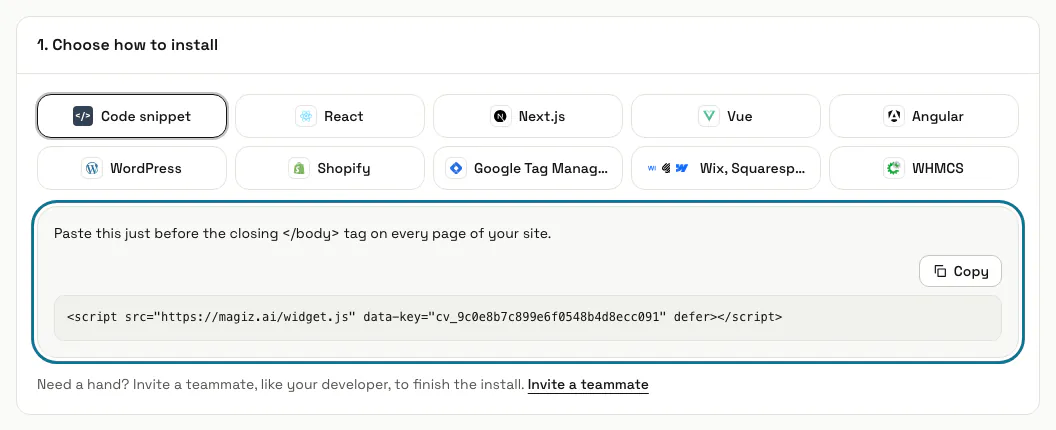
Step 2: Add data- attributes where you need them
data-open="load" opens the chat as soon as the page loads, for a page made only for the chat. data-launcher="bubble" or "teaser" sets the launcher on that page whatever the dashboard says, data-cookie-domain=".example.com" keeps one conversation across your subdomains, and data-lang="ar" (or "fr", "en") shows the chat window in that language, right to left for Arabic, when your visitors read another language than the page.
<script src="https://magiz.ai/widget.js" data-key="YOUR_PUBLIC_KEY" data-open="load" defer></script>Step 3: Open the chat from your own button
Once the script has loaded, the page has a MagizAI object. MagizAI.open() opens the chat, MagizAI.open() with a question opens it with that question already asked, and MagizAI.close() closes it.
<button onclick="MagizAI.open('Which facial suits sensitive skin?')">Ask about facials</button>Step 4: Call MagizAI.logout() when a customer signs out
It ends this browser's conversation and forgets whose it was, so the next person at the same computer starts as a new visitor. It is safe to call even when the chat was never opened.
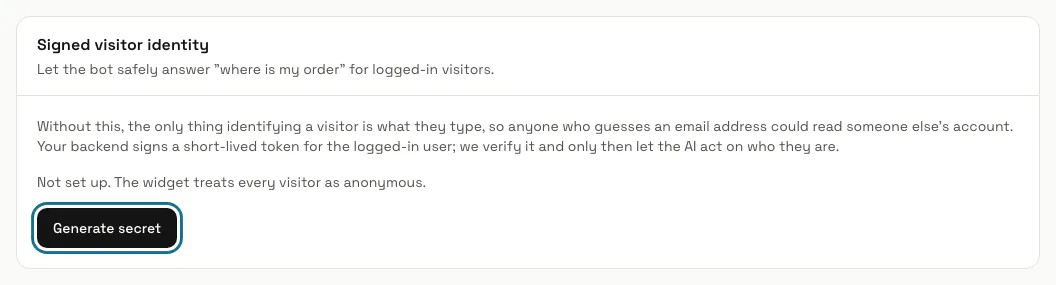
Step 5: Press "Generate secret" under "Signed visitor identity"
On the same Install page, press "Generate secret" and copy it at once: "Copy this now. It is not shown again." Keep it on your server, never in browser code.
Step 6: Sign a token for the signed-in customer
On your server, sign a JWT with HS256 and the secret. Put your own id for the person in sub (never "0"), add email and name, and if you like plan, company and locale; a token is never honoured for more than 24 hours, whatever its exp says.
import jwt from 'jsonwebtoken'; const token = jwt.sign( { sub: user.id, email: user.email, name: user.name }, process.env.MAGIZAI_IDENTITY_SECRET, { algorithm: 'HS256', expiresIn: '10m' }, );Step 7: Give the token to the widget
Put it on the script tag as data-identity, or set window.MagizAIIdentity to the token or to a function that returns a fresh one. The assistant then knows who is asking and can answer about that person's own account, such as "where is my order", instead of treating them as anonymous.
<script src="https://magiz.ai/widget.js" data-key="YOUR_PUBLIC_KEY" data-identity="SIGNED_TOKEN" defer></script>Step 8: Rotate or turn off the secret
"Rotate secret" makes a new one and the old one stops working at once, so put the new secret on your server first. "Turn off" treats new visitors as anonymous; visitors already verified keep their access.
Tips
- MagizAI.trackConversion(149, 'USD') records a sale the chat helped with, for the revenue report. It does nothing until this browser has a conversation.
- Make a fresh identity token on each page load rather than one that lives for hours.
- Pages that still call window.ElyAgents keep working: it is the same object as MagizAI.
- Building your own chat window or app instead? Use the REST API with a token from Settings, API tokens.
Stuck on a step? Ask our team