Troubleshooting
WhatsApp problems
What the usual WhatsApp error codes mean and how to fix each one. The checklist, the number's last error and the inbox all show the code's plain meaning.
Who can use it: Owner and Admin, or a custom role with "Change workspace settings and connections".
Step 1: Find the error
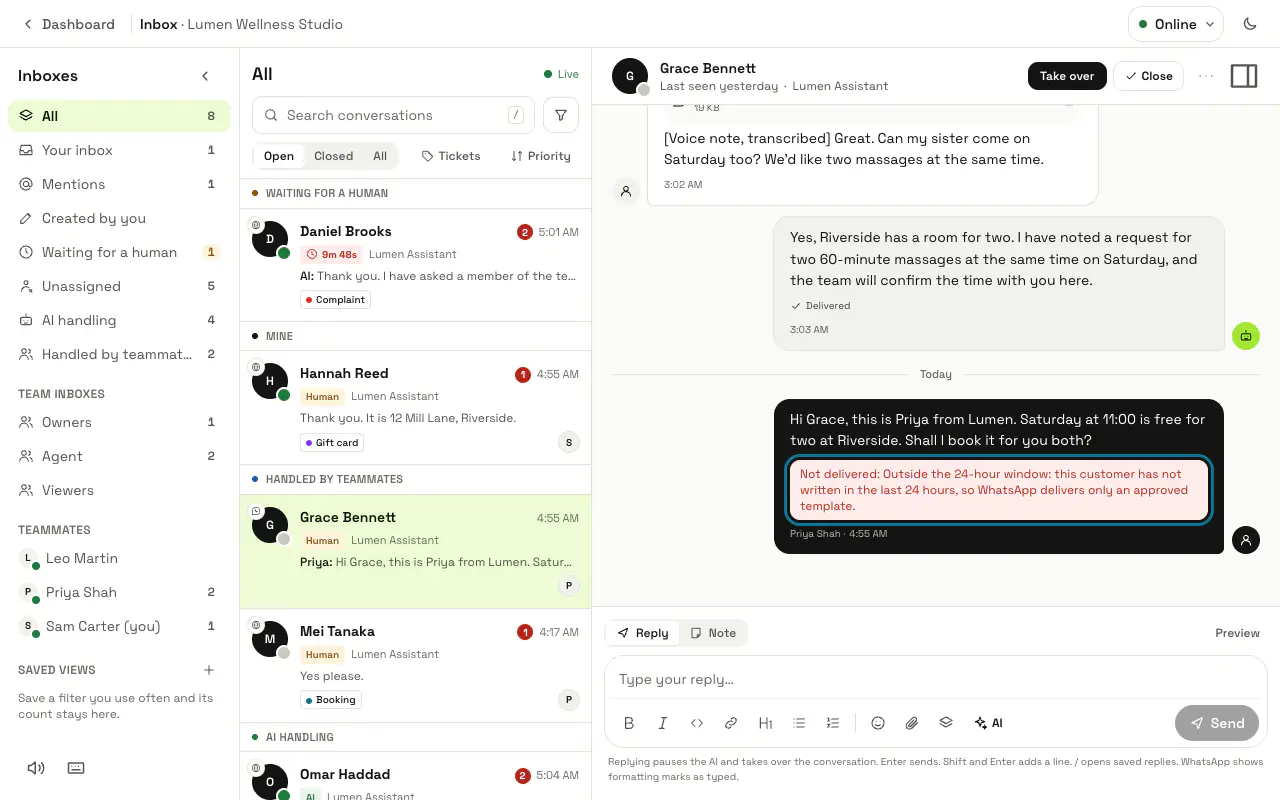
Three places show it: the checklist under the number, the line "WhatsApp reported a delivery problem" under it, and "Not delivered" under a reply in the inbox. Each gives our plain words first and then what Meta said. Press "Test connection" after a fix to check again.
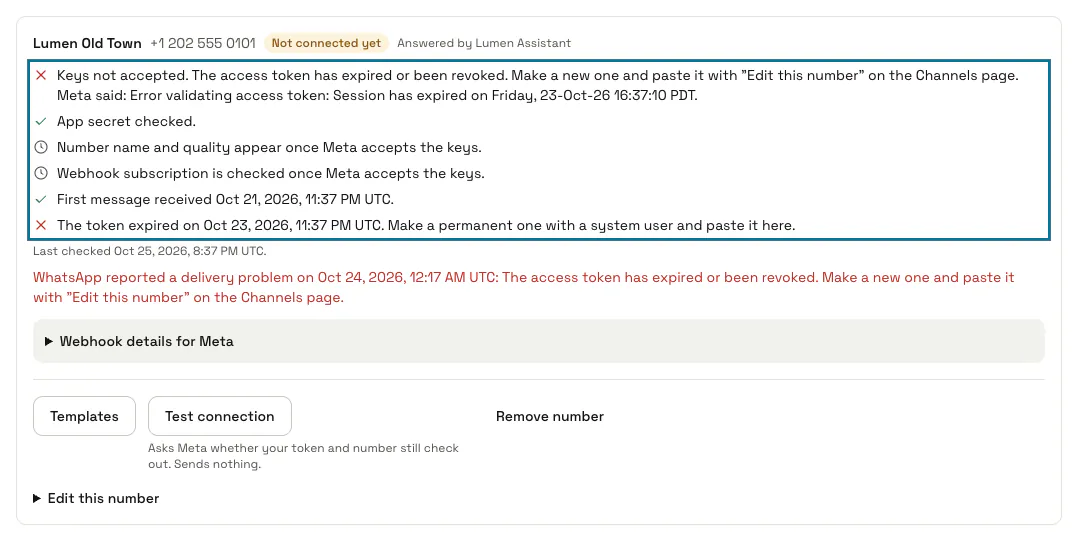
Step 2: Fix 190: the token expired or was revoked
The token stopped working: a temporary one from API Setup after about 24 hours, or a system user token that was deleted or regenerated. Make a permanent token with a system user (see the WhatsApp topic), paste it in "Access token" with "Edit this number" and save.
Step 3: Fix 100: Meta does not know an ID
The phone number ID or the WhatsApp Business Account ID is wrong, or the token cannot see it. Copy both again from API Setup, and check the token was made for the same app and account.
Step 4: Fix 10 or 200: the token lacks a permission
The system user is missing an asset or a permission. In Business settings, System users, give it the app and the WhatsApp account, then generate a new token with business_management, whatsapp_business_messaging and whatsapp_business_management.
Step 5: Fix 131047: more than 24 hours since the customer wrote
WhatsApp delivers only an approved template now. Create the templates MagizAI needs on the number's Templates page and pick the customer reply template; late replies then go inside it.
Step 6: Fix 131026: the message could not be delivered
The number is not on WhatsApp, the customer has not accepted WhatsApp's latest terms, or their app is too old. Check the number and its country code; there is nothing to fix on your side if it is right.
Meta's test number refuses a number you did not add as a recipient in API Setup, with 131030.
Step 7: Fix 132000: the template takes a different number of variables
The picked template has more or fewer {{1}}, {{2}} than MagizAI fills in. The staff alert template takes 3 (customer, reason, link) and the customer reply template takes 1 (the reply): pick ones that match, or create MagizAI's own under "Templates MagizAI needs" on the number's Templates page.
Step 8: Fix 131051 and 133010
131051 means WhatsApp does not support that kind of message for this customer; the reply is kept in the inbox. 133010 means the number is not registered with the Cloud API: finish adding it in API Setup (verify the code Meta sends), then press "Test connection".
Step 9: Fix messages that stop after 1,000 a month
Since 1 October 2026 each number gets 1,000 free service messages a month; after that Meta charges for them. Without a payment method on the WhatsApp account those messages are not delivered (Meta reports 131042, a payment problem). Add one in Meta's billing settings.
Tips
- Nothing arrives at all: check the checklist says "Webhook subscribed" and that messages is ticked under Webhook fields in Meta, and that the App secret saved in MagizAI is the one of the same app.
Stuck on a step? Ask our team